Profile Availability
April 15, 2026
Set your online status from the LenoChat toolbar to control when new conversations are routed to you.
Understanding Availability Statuses
LenoChat gives every agent five distinct availability statuses. Each status sends a different signal to the routing engine and to teammates watching the team dashboard. Your status is visible to all members of your workspace in real time — it updates the moment you change it, with no page refresh required anywhere in the dashboard. Choosing the correct status is important not just for your own workload management, but for the experience of every visitor waiting in the chat queue.
- Online — You are fully available and ready to receive new chat assignments. The routing engine includes you in the active agent pool and will assign incoming conversations to you according to your workspace's assignment rules.
- Busy — You are logged in but occupied with existing conversations. Depending on your workspace configuration, new chats may still be assigned to you as a fallback, but teammates can see you are handling a heavy load.
- Away — You have stepped away temporarily. The status is visible to the whole team and is the recommended choice for short breaks — it signals your absence without removing you from the workspace entirely.
- Do Not Disturb — You are present in the dashboard but need focused, uninterrupted time. Use this during client calls, internal escalations, or deep-focus work where you cannot attend to new conversations.
- Offline — You are not accepting any chats. Your profile shows as offline to all teammates, and the routing engine will not assign new conversations to you for the duration of your Offline status.
How to Change Your Availability Status
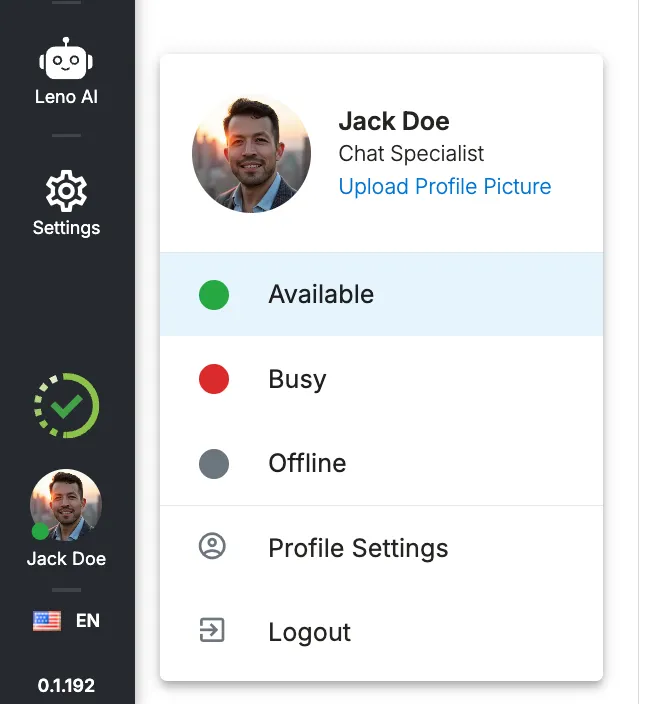
Your availability status is controlled from the toolbar at the bottom-left corner of the LenoChat dashboard. The status indicator is always visible regardless of which section of the dashboard you are in, so you can update your availability without navigating away from an active conversation or any other view.
- Step 1: Locate the toolbar in the bottom-left corner of the LenoChat dashboard. You will see a coloured status dot next to your profile picture — green for Online, yellow/amber for Away, red for Do Not Disturb, and grey for Offline.
- Step 2: Click your profile picture or the coloured status dot to open the status selector. A menu appears listing all available statuses with their respective icons and colour indicators.
- Step 3: Click the status you want to switch to. The change is applied instantly — your dot changes colour, your teammates see your new status in their team views, and the routing engine updates your availability for the next incoming conversation immediately.
- Step 4: Confirm the change by checking the colour of the dot in the toolbar. The status update is complete when the dot colour updates — no additional Save or Confirm step is required.
Setting Your Preferred Login Status
LenoChat allows you to save a preferred availability status that is applied automatically every time you log in. This is especially useful for agents who always want to begin a shift as Online and ready to accept chats, or for agents who prefer to review their queue before going live and want to start every session as Busy or Away. You configure this preference once in your profile settings, and LenoChat handles the rest at every subsequent login.
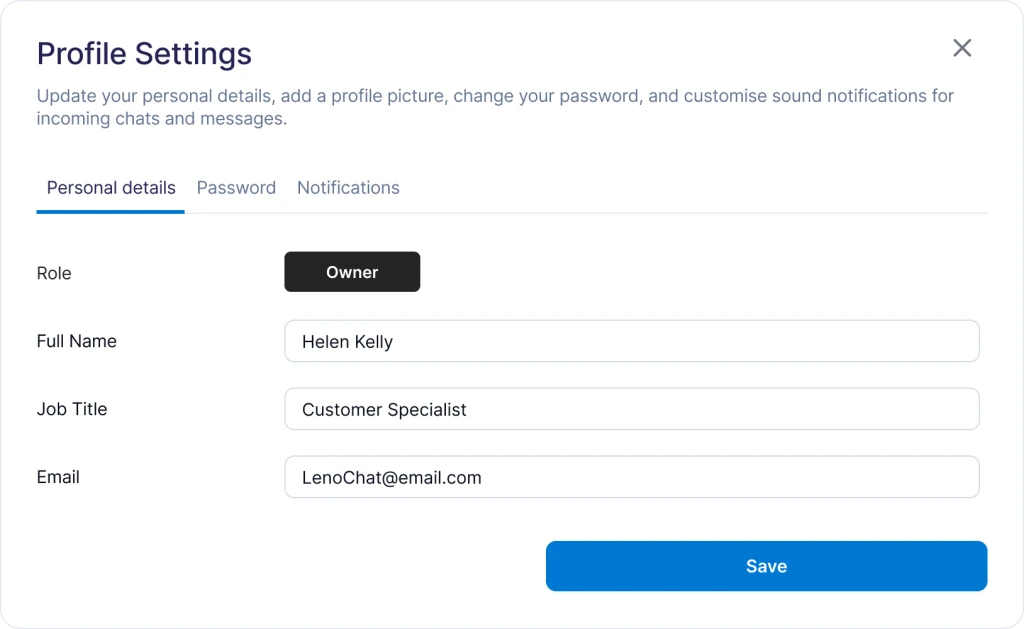
- Step 1: Navigate to your profile settings. Click your profile picture in the bottom-left toolbar and look for Profile or Profile Settings in the menu that opens.
- Step 2: In your profile settings, locate the Availability section. Here you will find the option to choose your preferred status on login — the status that LenoChat will apply automatically at the start of each new session.
- Step 3: Select the status you want to begin each session with. Your options are Online, Busy, Away, Do Not Disturb, and Offline. Choose the one that matches how your team starts its shift.
- Step 4: Save your profile settings. The next time you log in to LenoChat, your status will be automatically set to your saved preference — you will not need to switch it manually at the start of each session.
- Step 5: To override the preference for a single session, simply change your status from the toolbar after logging in. The saved preference only controls the initial state at login and does not prevent you from switching to any other status during the session.
Availability Status Reference
The table below summarises all five availability statuses, their visual indicators in the LenoChat toolbar, their effect on the chat routing engine, and how they appear to other workspace members.
| Status | Indicator Colour | Receives New Chats | Visible to Teammates As |
|---|---|---|---|
| Online | Green | Yes — included in routing pool normally | Available |
| Busy | Yellow | Depends on workspace assignment settings | Busy |
| Away | Amber | No — excluded from routing | Away |
| Do Not Disturb | Red | No — excluded from routing | Do Not Disturb |
| Offline | Grey | No — excluded from routing | Offline |
How Availability Affects Chat Assignment
Your availability status directly controls whether the LenoChat routing engine includes you in the pool of agents eligible to receive new conversations. Understanding the routing behaviour for each status helps your team coordinate handoffs, manage queue load during peak periods, and ensure no visitor is left waiting because conversations were routed to an unavailable agent.
- Online agents are the primary recipients of new chat assignments. The routing engine distributes conversations across all Online agents according to your workspace's assignment rules — typically round-robin or load-balanced by the number of currently open chats per agent.
- Busy agents may still receive assignments depending on how your workspace is configured. In high-volume environments where every available agent is needed, Admins can configure the system to fall back to Busy agents when no Online agents are free. Check with your workspace Admin to understand how your workspace handles Busy routing.
- Away and Do Not Disturb agents are excluded from new chat routing entirely. Conversations that would otherwise have gone to an Away or Do Not Disturb agent are redistributed to available Online agents, or held in the unassigned queue for Leno AI to handle if AI chat is active for your workspace.
- Offline agents receive no new assignments. Any conversations an Offline agent already had open remain in their inbox, but no additional routing will occur. Admins can manually reassign open conversations from Offline agents to Online agents from the shared inbox view.
- Status changes take effect for routing purposes instantly. The moment you update your status, the next routing decision — triggered by the next incoming conversation — will reflect your new availability. There is no delay, polling interval, or session refresh required.
Accept Chats After Login
Alongside your presence status, LenoChat includes a profile setting called Accept Chats After Login. This toggle controls whether the routing system treats you as eligible to receive new chat assignments immediately upon logging in, independently of what your saved preferred status is. It is useful for agents who log in to review dashboards, check reports, or complete administrative tasks without intending to take live conversations during that session.
- When Accept Chats After Login is enabled, you will start receiving chat assignments as soon as your session begins and your status permits it. This is the default configuration for most support and sales agents.
- When Accept Chats After Login is disabled, you log in without entering the routing pool. You can still manually switch to Online at any point during the session to begin accepting chats — the setting only controls the automatic behaviour at the moment of login.
- This setting is found in your Profile settings alongside the preferred login status option. Changes to Accept Chats After Login take effect at the start of your next login session — they do not affect your current active session.
- If you regularly switch roles — for example, sometimes managing the team and sometimes taking live chats — configuring this setting to Off and switching to Online only when ready can significantly reduce the risk of missed conversations during transition periods.
Visibility of Your Status to Teammates
Your availability status is shared in real time with every connected dashboard session in your workspace via WebSocket events. No page refresh is needed by teammates — their dashboards update automatically the moment you change your status. Your current availability appears in several locations throughout the LenoChat dashboard, making it easy for your team to coordinate and route conversations effectively.
- Toolbar status dot — the coloured dot next to your profile picture in your own toolbar always reflects your current status and updates instantly when you change it.
- Team member views — workspace Owners and Admins see a live status indicator next to every agent's name in team management sections. The dot uses the same colour coding: green for Online, amber for Away, red for Do Not Disturb, and grey for Offline.
- Conversation assignment panels — when an Admin manually assigns a conversation to a specific agent, the assignment dropdown shows each agent's current status alongside their name, allowing the Admin to avoid routing to unavailable agents.
- Status update broadcasts — every status change is emitted instantly to all connected sessions in your workspace via a real-time socket event. The broadcast payload includes your agent ID, your new status (online, busy, away, or offline), an optional status message, and a timestamp — ensuring every other agent's dashboard stays in sync without any polling.