Visitors Map
April 15, 2026
See who's browsing your site in real time on an interactive map and proactively engage visitors before they start a chat.
What You Can Do with the Visitors Map
The Visitors Map is a real-time monitoring tool built into every LenoChat workspace. It streams live visitor data from your website to your team — with no polling delays — so agents can see who is browsing, where they are, what they are reading, and whether they already have a chat open. Unlike reactive support where you wait for visitors to reach out, the Visitors Map lets your team take the initiative.
- See every live website visitor on an interactive world map, clustered by city and colour-coded by status.
- Browse the sidebar for a scrollable, filterable list of all connected visitors sorted by arrival time.
- Inspect full visitor details — current page, page history, time on site, browser language, timezone, and referrer.
- Identify returning visitors with the ↩ returning badge and prioritise proactive outreach to high-value prospects.
- Track visitors who have opened a chat, with live chat status badges showing Unassigned, Assigned, AI Chat, or Resolved.
The Interactive World Map
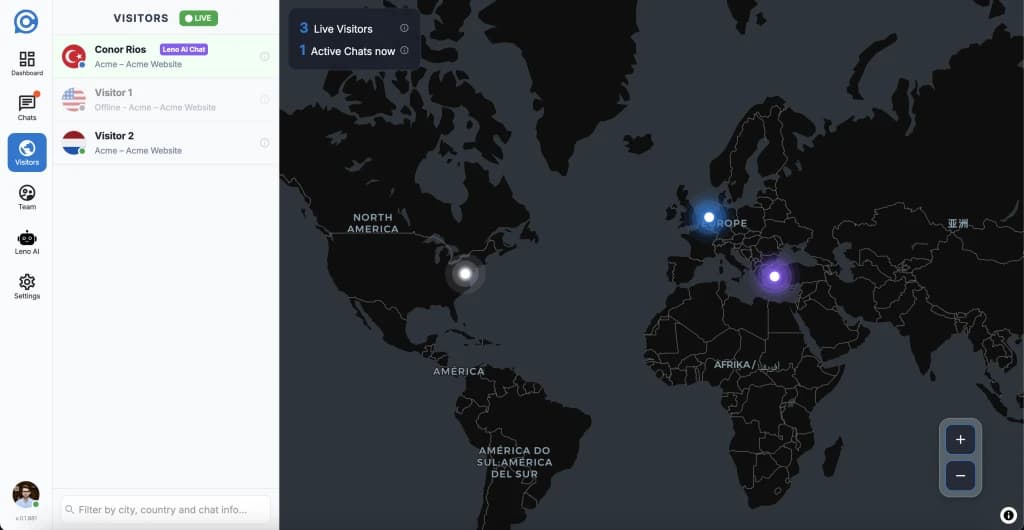
The map is the centrepiece of the Visitors page. It renders visitors as location pins on a dark world map, grouped by city so a busy website does not produce a cluttered display. Every pin updates in real time as visitors arrive, navigate, or leave — powered entirely by WebSocket events with no page refresh required.
- City-clustered pins — when multiple visitors are in the same city, a single pin with a red count badge appears. Click it to see all visitors at that location.
- Status-coloured cores — green for active visitors, grey for inactive (tab idle or closed), and blue for visitors currently in a chat conversation.
- Click any pin to fly the map to that location at zoom level 5. The selected pin begins a pulsing ripple animation and a visitor detail panel opens in the sidebar.
- Hover any pin to see a popup listing all visitors at that location — click an individual visitor in the popup to select them and centre the map on their position.
- The overlay card in the top-left corner displays total live visitors and active chats now, each with an information tooltip explaining what the numbers include.
- Use the + and − zoom buttons in the bottom-right corner to adjust the map view. Click anywhere on the map background to deselect the current visitor.
The Visitor Sidebar
The sidebar runs along the left side of the Visitors page and lists every connected visitor in real time. New visitors appear at the top as they arrive and are automatically removed when their session expires. The sidebar and the map are always in sync: selecting a visitor in the sidebar flies the map to their location, and clicking a map pin highlights the corresponding row in the list.
- Each row shows: a colour-coded status dot, the visitor's country flag emoji, their display name (or 'Visitor N' if unnamed), a ↩ badge for returning visitors, the title of their current page, and a chat status badge when they are in an active conversation.
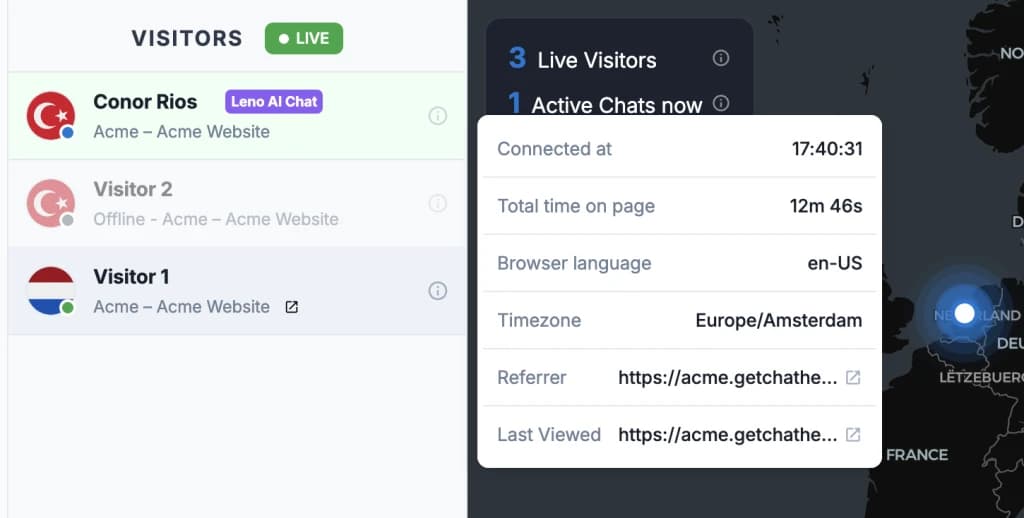
- Hover any row to open a detail tooltip with full information: connected time, total time on site (live counter), browser language, timezone, referrer, and last-viewed page — all available before you say a word.
- The filter bar at the top searches in real time across visitor name, city, region, country, page title, referrer, browser language, and chat status simultaneously. The map also updates to highlight only matching visitors as you type.
- The sidebar is resizable: drag its right edge to widen or narrow it, and your preferred width is saved between sessions (minimum 325 px, maximum 600 px).
Visitor Status Indicators
Every visitor in the sidebar and on the map is assigned one of three status indicators. The colour of the dot and the map pin core reflect the visitor's current activity and update in real time.
| Status | Colour | What It Means |
|---|---|---|
| Active | Green | Visitor is actively browsing your site and sending live heartbeats to the tracking system. |
| Inactive | Grey | Visitor's tab is idle or closed — they remain visible for up to 30 minutes before being automatically removed. |
| Chatting | Blue | Visitor has an open chat conversation — a detailed chat status badge shows the exact request state. |
Chat Status Badges for Conversations in Progress
When a visitor opens the chat widget and sends a message, their indicator upgrades from the generic blue 'Chatting' state to a precise status badge reflecting the actual state of their chat request. This badge appears on the visitor row in the sidebar, in the hover tooltip, and on the visitor's map pin — so your team always knows the exact state of every active conversation at a glance, without opening the inbox.
- Unassigned (amber) — the chat request is in the queue and has not yet been picked up by an agent or Leno AI. This is the most urgent state — your team should act immediately to avoid the visitor leaving.
- Assigned (blue) — an agent has accepted the conversation and is actively handling it.
- AI Chat (purple) — Leno AI is autonomously managing the conversation. Any agent can monitor the exchange or take over manually at any time.
- Resolved (grey) — the conversation has been archived. The visitor remains visible on the map briefly while the session hold period counts down before being removed.
Visitor Detail Tooltip — Full Context Before You Say a Word
Hovering over any visitor row in the sidebar opens a detail tooltip with all available data about that visitor. This information is available before you initiate a conversation, giving your team complete context to personalise the opening message and make a strong first impression.
- Chat ID and current status — if the visitor is in a conversation, the chat ID and its status (Unassigned, Assigned, AI Chat, or Resolved) are shown at the top of the tooltip.
- Connected at — the exact timestamp when the visitor first arrived on your site in their current session.
- Total time on site — a live counter ticking up in real time, showing how long the visitor has been browsing this session.
- Browser language — the language setting of the visitor's browser (e.g., en-US, tr, ja), useful for routing to the right agent or confirming Leno AI language settings are correct.
- Timezone — the visitor's IANA timezone (e.g., Europe/Istanbul, America/New_York), which helps you time follow-up messages if the visitor does not respond straight away.
- Referrer — the URL of the page that sent the visitor to your site. Click the referrer link to open it in a new tab and understand the traffic source.
- Last viewed page — the title and URL of the most recent page the visitor navigated to. Click to open it and see exactly what they are reading right now.
How to Enable Visitor Tracking
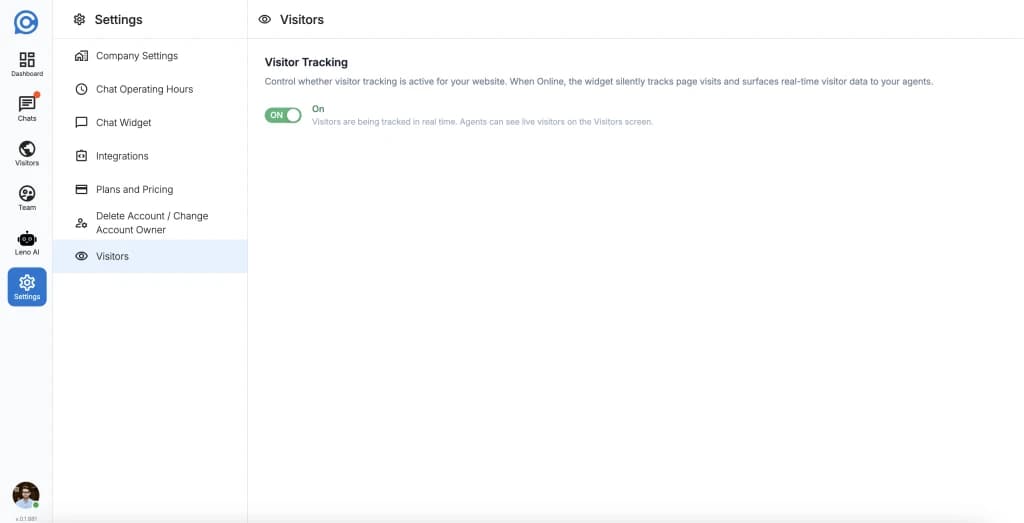
Visitor tracking is controlled by a single toggle in your workspace settings. It is disabled by default and must be enabled once per workspace by an Owner or Admin. The change takes effect immediately — no widget code updates, redeployment, or inbox restarts are required.
- Step 1: Navigate to Settings from the dashboard sidebar, then select Visitors from the settings navigation. This option is visible to workspace Owners and Admins only.
- Step 2: Review the Visitor Tracking toggle. Online means tracking is active and visitor data is being sent to your Visitors Map in real time. Offline means tracking is disabled and no visitor data is collected.
- Step 3: Click the toggle to switch between Online and Offline. The setting saves automatically with no Save button required. The change applies to all new visitor connections immediately — visitors already connected will be included in the next heartbeat cycle.
Who Can See and Configure the Visitors Map
Access to the Visitors Map and the ability to configure tracking are separated by role. All team members can view live visitor data; only Owners and Admins can enable or disable the feature.
| Role | View Visitors Map | Enable / Disable Tracking |
|---|---|---|
| Owner | Yes | Yes |
| Admin | Yes | Yes |
| Agent | Yes | No — contact an Owner or Admin to change this setting |