Leno AI Multi-Language Support
April 15, 2026
Leno AI detects each visitor's language and replies natively — no manual switching, no translation delays, no lost customers.
Benefits at a Glance
Multi-language support is included in every Leno AI plan at no extra cost. Once enabled, your AI agent automatically handles conversations in over 90 languages without any per-conversation configuration or translation workflow.
- Native language responses — Leno AI detects the visitor's language and replies in it directly, without routing through English first.
- Brand consistency across markets — tone, product names, and links are preserved in every supported language.
- Automatic detection — no action required from visitors or your team; detection happens on every incoming message.
- Controlled language scope — restrict Leno AI to specific regional languages when your team only covers certain markets.
- Reduced team overhead — handle international chat volume without expanding headcount or setting up language-specific inboxes.
How It Works
When a visitor sends a message, Leno AI processes it through three sequential stages before generating a reply. The language detection step runs first — before intent classification or knowledge retrieval — so every downstream step operates in the correct language from the start.
- Language detection: Leno AI identifies the language of the incoming message. For very short inputs (emojis, single words like 'hi' or 'ok'), it falls back to the conversation's previously detected language or your configured default.
- Contextual understanding: Leno AI classifies the visitor's intent and retrieves relevant knowledge base content, operating entirely in the detected language — even if your knowledge base is written in a different language.
- Native-language response generation: the final reply is generated directly in the visitor's language, not translated after the fact, producing more natural and accurate output.
Supported Languages
Leno AI supports over 90 languages. Your knowledge base does not need to be translated — answers are generated in the visitor's language even when all your content is written in a single language. A complete list is available inside the Leno AI Settings panel.
| Afrikaans | Albanian | Amharic |
| Arabic | Armenian | Azerbaijani |
| Basque | Bengali | Bosnian |
| Bulgarian | Burmese | Catalan |
| Croatian | Czech | Danish |
| Dutch | English | Estonian |
| Finnish | French | Galician |
| Georgian | German | Greek |
| Hausa | Hebrew | Hindi |
| Hungarian | Icelandic | Indonesian |
| Italian | Japanese | Kazakh |
| Khmer | Korean | Lao |
| Latvian | Lithuanian | Macedonian |
| Malay | Mongolian | Nepali |
| Norwegian | Pashto | Persian/Farsi |
| Polish | Portuguese | Punjabi |
| Romanian | Russian | Serbian |
| Simplified Chinese | Sinhala | Slovak |
| Slovenian | Spanish | Swahili |
| Swedish | Tagalog | Tamil |
| Telugu | Thai | Traditional Chinese |
| Turkish | Ukrainian | Urdu |
| Uzbek | Vietnamese | Yoruba |
| Zulu |
How to Enable the Feature
Multi-language support is disabled by default and must be turned on once per workspace. The configuration takes under a minute and applies immediately — no redeployment or inbox restart required.
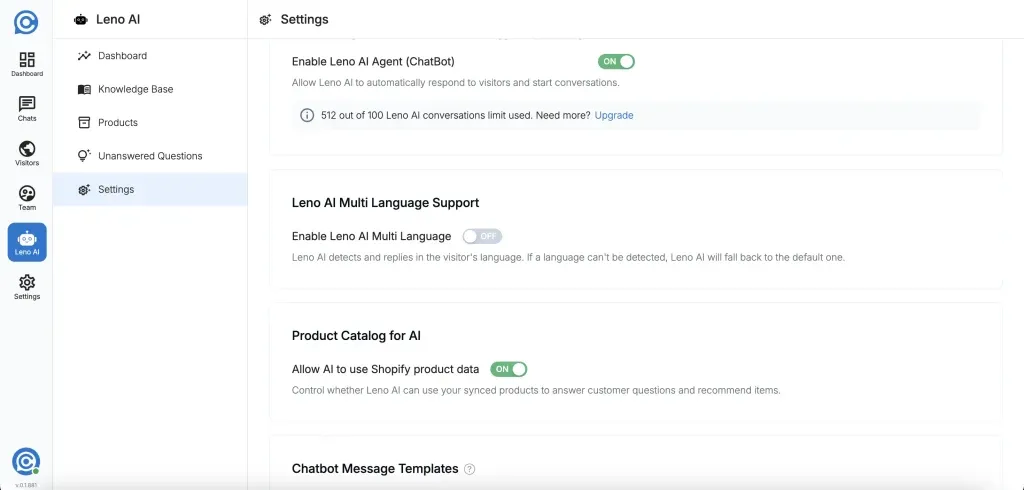
- Step 1: Navigate to Leno AI Settings from the dashboard sidebar.
- Step 2: Scroll to the Leno AI Multi Language Support section.
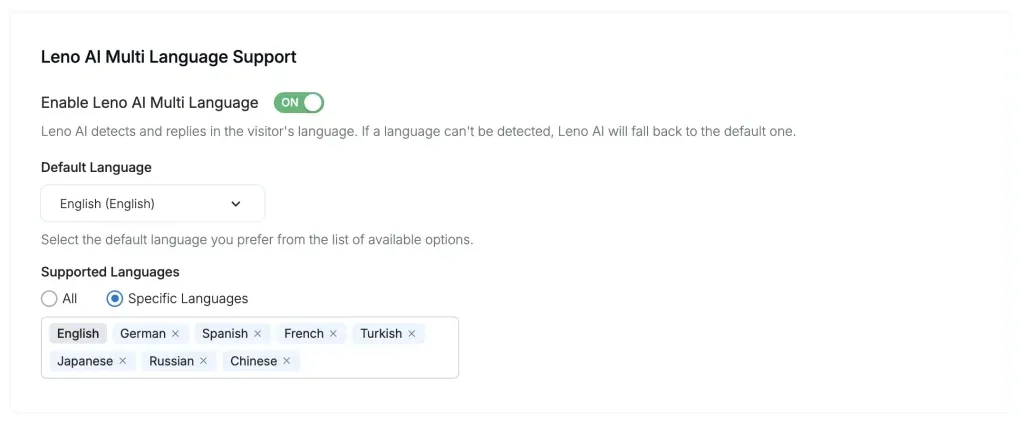
- Step 3: Toggle Enable Leno AI Multi Language to ON. Once activated, the Default Language and Supported Languages options appear below the toggle.
Setting a Default Language
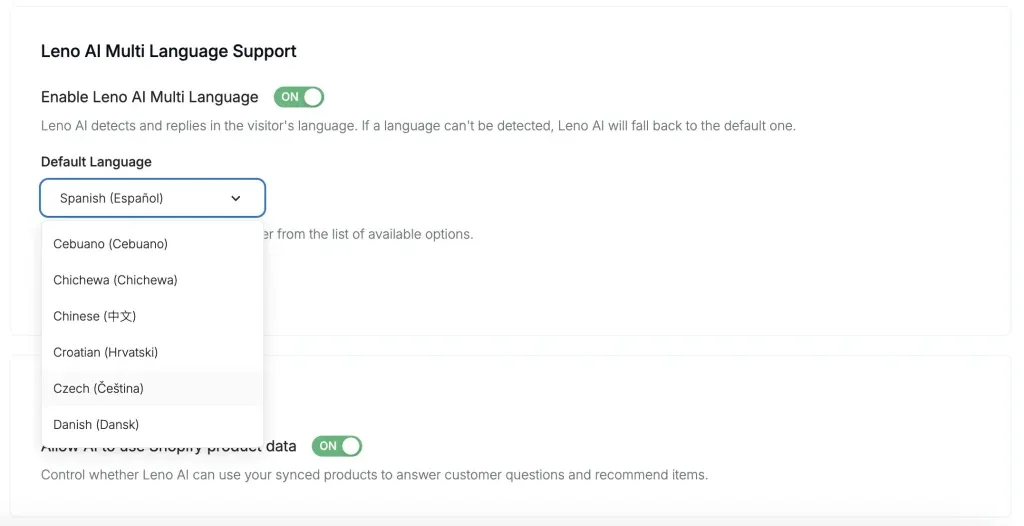
The default language is the fallback Leno AI uses when it cannot confidently detect a visitor's language, or when the detected language is not in your allowed list. Most workspaces set this to English, but you can choose any of the 90+ supported languages.
- Leno AI switches to the default language when the visitor's language cannot be detected (very short messages, emoji-only inputs) or when the detected language is not in your allowed list.
- To set your default language: find the Default Language dropdown in the Multi Language Support section, search or scroll to your preferred language, and select it — the setting saves automatically.
- The default language is always included in your allowed list and cannot be removed — it ensures every visitor receives a response even in edge cases.
All Languages vs. Specific Languages
After enabling multi-language support, you choose whether Leno AI responds in all 90+ supported languages or only a restricted list you define. The right choice depends on which markets your support team can cover if a conversation needs to be escalated to a human agent.
- All Languages: Leno AI responds in any of the 90+ supported languages. Best for businesses serving global audiences. No additional setup required beyond enabling the feature.
- Specific Languages: Leno AI only responds in the languages you select. Best for region-specific operations or when your escalation team only covers certain languages. Visitors writing in an unsupported language are informed and receive a response in your default language.
- To select specific languages: under Supported Languages choose Specific Languages, then click inside the language input and type to search. Select a language to add it as a chip. Remove a language by clicking × on its chip. The default language chip cannot be removed. Changes save automatically.