Setting Up Leno AI Agent Chatbot
April 15, 2026
Activate Leno AI Agent to handle visitor conversations automatically — answer questions, share information, and escalate to humans when needed.
What the Leno AI Agent Chatbot Does
The Leno AI Agent is an autonomous AI that takes over visitor conversations without requiring a human agent to be present. Once activated, it monitors every incoming chat, processes the visitor's message, retrieves the most relevant answer from your knowledge base, and replies automatically — typically within seconds. The agent continues the conversation until the visitor's question is resolved, until the visitor requests a human agent, or until the AI reaches the boundary of what it can confidently answer. At that point, Leno AI hands the conversation off according to your configured Handoff settings.
- Automated conversation handling — Leno AI responds to visitors 24 hours a day, 7 days a week, without any agent being online.
- Knowledge base retrieval — answers are drawn from the content you have added to your Leno AI knowledge base, including URLs, documents, and Q&A pairs.
- Product awareness — when connected to your Shopify store, Leno AI can answer questions about your product catalog, stock levels, and pricing.
- Intelligent handoff — when the AI cannot answer a question or the visitor requests a human, the conversation is routed according to your Handoff settings.
- Conversation history preserved — when Leno AI transfers a conversation to a human agent, the full chat history is retained so the agent can continue seamlessly without asking the visitor to repeat themselves.
Before You Begin
The Leno AI Agent requires two prerequisites to be in place before activation. If either is missing, the AI toggles will appear disabled in your dashboard and LenoChat will display a warning message explaining what needs to be resolved.
- Install the LenoChat widget on your website — the chat widget must be embedded on your site and the integration marked as complete in your dashboard. If you have not done this yet, navigate to Settings → Integrations from the main dashboard sidebar and follow the installation steps for your platform.
- Ensure your plan includes AI conversation credits — the Leno AI Agent consumes conversation credits from your plan's monthly allowance. If your conversation limit has been reached, all AI toggles are automatically disabled until the limit resets at the start of your next billing cycle or you upgrade your plan.
How to Activate the Leno AI Agent
Activating the Leno AI Agent takes under 60 seconds. All settings are controlled from the Activation panel inside the Leno AI section of your dashboard. Follow the steps below to enable the agent chatbot and choose which AI modes you want active.
- Step 1: Log in to your LenoChat dashboard and click Leno AI in the left sidebar. This opens the Leno AI section with its own navigation.
- Step 2: Click Settings in the Leno AI sidebar, then select Activation (or Leno AI if you are on the updated sidebar layout). This opens the Leno AI Activation panel.
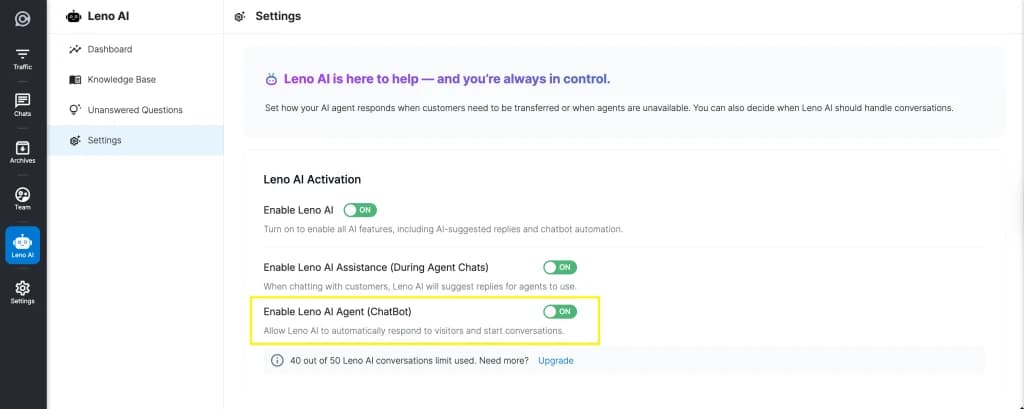
- Step 3: Locate the Enable Leno AI toggle at the top of the activation card. Click it to toggle it ON. This master switch enables all Leno AI features and also automatically activates both sub-toggles — Leno AI Copilot and Leno AI Agent.
- Step 4: Review the two sub-toggles that appear below the main toggle. Enable Leno AI Copilot During Agent Chats controls AI assistance for your human agents during live conversations. Enable Leno AI Agent controls the autonomous chatbot mode that responds automatically without an agent present.
- Step 5: Adjust the sub-toggles to match your preferred configuration. If you only want the autonomous chatbot and not the copilot assistance, turn off Enable Leno AI Copilot During Agent Chats while keeping Enable Leno AI Agent on.
- Step 6: Changes take effect immediately — no save button is required. Toggle states are saved automatically and a success notification confirms each update.
Understanding the Three AI Toggles
The Leno AI Activation panel contains one master toggle and two sub-toggles that give you precise control over how AI is used in your workspace. The table below summarises what each toggle controls and when to enable it.
| Toggle | What It Controls | When to Enable |
|---|---|---|
| Enable Leno AI | Master on/off switch for all Leno AI features. Enabling it automatically activates both sub-toggles. Disabling it turns off all AI features instantly. | Enable whenever you want to use any Leno AI feature. Required for both Copilot and Agent modes. |
| Enable Leno AI Copilot During Agent Chats | Activates AI assistance for your human agents. When an agent is handling a chat, the AI suggests replies and surfaces relevant knowledge base content in the agent's sidebar panel. | Enable when you have human agents handling live chats and want to reduce their response time with AI-generated suggestions. |
| Enable Leno AI Agent | Activates the autonomous chatbot mode. When enabled, Leno AI automatically responds to every incoming conversation without a human agent needing to be present or assigned. | Enable when you want 24/7 automated responses to visitor questions, even when your team is offline. |
Plan Usage and Conversation Limits
Every AI response generated by the Leno AI Agent or triggered by the Copilot counts toward your plan's monthly AI conversation allowance. The current usage is displayed at the bottom of the Leno AI Activation card in the format 'X out of Y Leno AI conversations limit used'. Monitoring this counter helps you avoid unexpected service interruptions.
- Your AI conversation limit is set by your Leno AI plan. Paid plans include larger monthly allowances, and additional conversation credits can be purchased as add-ons at any time from the Subscription page.
- When the limit is reached, all three AI toggles are automatically disabled. Visitors will no longer receive AI-generated responses until the limit resets at the start of your next billing cycle or you purchase additional AI conversation credits.
- To purchase additional AI conversations or upgrade your plan, click the Upgrade link shown next to the usage counter in the Activation panel, or navigate to Settings → Subscription from the main dashboard.
- If you are running a high-volume Shopify store or expecting traffic spikes, review your projected monthly conversation volume before enabling the agent to avoid hitting the limit mid-month.
How the Leno AI Agent Handles Conversations
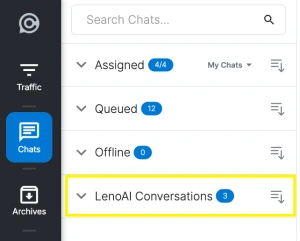
When a visitor opens the chat widget and sends a message, the Leno AI Agent processes it in real time and generates a reply from your knowledge base. The conversation appears in your LenoChat inbox labelled as AI-assigned, distinguishing it clearly from chats handled by human agents. Your team can monitor AI conversations at any time and step in to take over with a single click.
- Every incoming chat is assigned to the Leno AI Agent automatically when Agent mode is active — no manual assignment or routing rules are required.
- The AI responds continuously as long as it can find relevant answers. If the visitor asks something outside the knowledge base, Leno AI triggers your configured Handoff behavior — either routing to the agent queue or displaying a contact form.
- Visitors can request a human agent at any time by typing phrases such as 'I want to talk to a person'. This immediately triggers the Handoff workflow regardless of whether the AI had an answer ready.
- Human agents can view and take over any AI-assigned conversation instantly from the chat list. Clicking Assign to Me removes the conversation from the AI queue and places it in the agent's active chats, with the full history preserved.
Customizing Your AI Agent's Messages
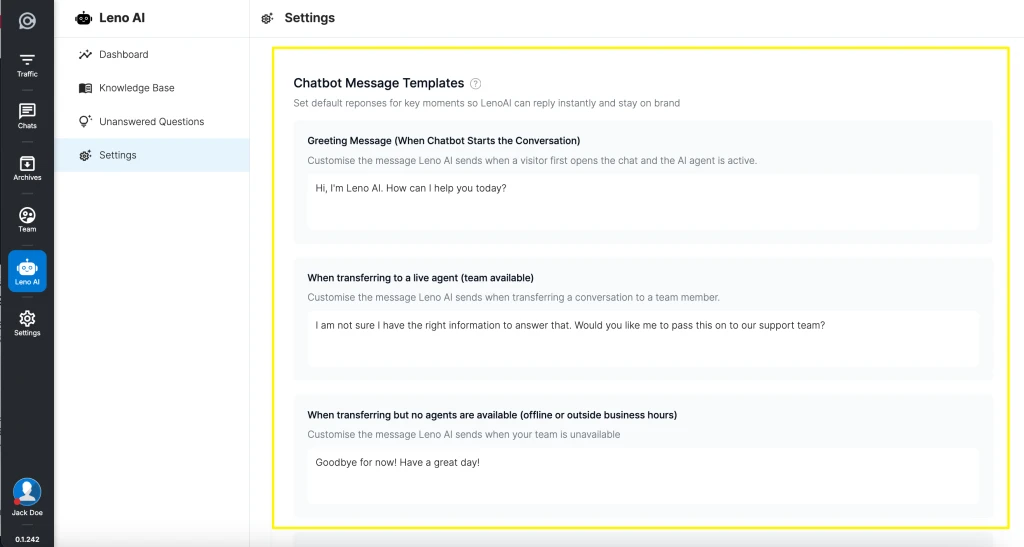
Leno AI uses configurable message templates for key moments in every conversation — when the AI cannot answer a question, when a visitor requests a human agent, and when an inactive chat is closed automatically. These messages appear directly in the chat widget and are the visitor's primary touchpoint with your brand during AI interactions. Customizing them ensures your AI sounds like your team, not a generic chatbot.
- Transfer preset message — displayed to the visitor when the AI hands the conversation off to a human agent or triggers the contact form. A default message is provided out of the box and can be fully edited to match your brand tone and voice.
- Closing message — displayed when an inactive AI-assigned chat is automatically closed after the auto-close timeout period you have set. You can add a custom closing message or leave it blank for a silent close.
- To edit these messages, navigate to Leno AI → Settings → Handoff in your dashboard, find the Preset Response and Closing Message sections, enter your custom text, and click Save after each change.