Chatbot Message Templates
April 15, 2026
Define the exact words Leno AI uses for greetings, fallbacks, handovers, and goodbyes — so every conversation stays on-brand.
Why Chatbot Message Templates Matter
Even the most capable AI benefits from a little guidance. Chatbot Message Templates let you shape how Leno AI communicates across a wide range of conversation scenarios — ensuring every response reflects your brand's voice, sets the right visitor expectations, and avoids generic AI dead-ends that frustrate customers. Without customised templates, Leno AI falls back to sensible system defaults. With a few minutes of setup, you can give your AI agent a personality that feels authentically yours and converts visitors into customers more effectively.
- Control tone: set responses that match your brand's voice — whether that's professional, friendly, empathetic, or playful.
- Guide the experience: tell the AI what to say and when, including auto-greetings, fallback messages, and human handover prompts.
- Improve clarity: replace generic replies with precise, helpful messaging that visitors understand immediately.
- Boost trust: visitors respond better to AI that sounds like a real team member rather than a scripted robot.
- Reduce dead-ends: with clear fallback and handover messages, no conversation stalls because the AI didn't know what to say next.
Enabling the Templates Section
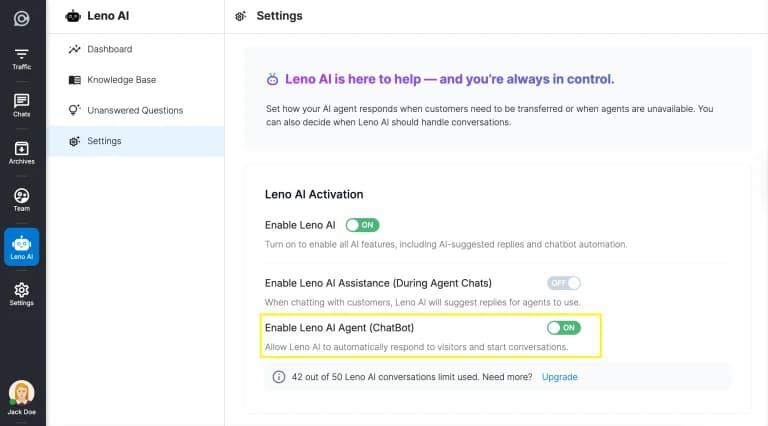
Chatbot Message Templates are only available when the Leno AI Agent (ChatBot) is toggled ON in your settings. Once enabled, the full templates panel appears in your Leno AI Settings. Each template group is collapsible, and expanding a group reveals all the individual message fields within it.
- Step 1: Log in to LenoChat and navigate to Settings from the left sidebar.
- Step 2: Select Leno AI Settings from the Settings menu.
- Step 3: Toggle the Leno AI Agent (ChatBot) switch to ON. The Chatbot Message Templates section will appear immediately below the toggle.
- Step 4: Expand any template group to view and edit individual message fields.
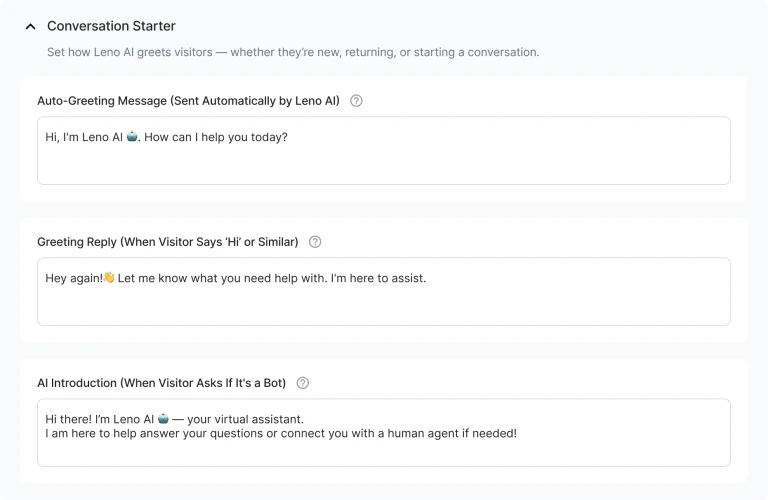
Conversation Starter Messages
The Conversation Starter group contains templates for the opening moments of every chat. These messages define how Leno AI introduces itself, responds to greetings, and handles identity questions — all before any support query has been raised. Setting these correctly creates a warm, professional first impression that encourages visitors to engage.
- Auto-Greeting Message (sent automatically when a visitor opens the chat widget): this is Leno AI's opening line, triggered before the visitor types anything. Use it to introduce the AI, invite questions, and set expectations — for example, 'Hi, I'm Leno AI! How can I help you today?'
- Greeting Response (triggered when a visitor says 'hi', 'hello', or similar): keeps the tone conversational and welcomes returning or hesitant visitors. For example, 'Hey! Great to see you. What can I help you with?'
- AI Identity Message (triggered when a visitor asks 'Are you a bot?' or 'Is this a human?'): builds transparency and trust. Acknowledge the AI identity honestly, then pivot to what you can help with — for example, 'I'm Leno AI, your virtual assistant! I can answer most questions right away, or connect you with a human if needed.'
- Personal Response to Friendly Questions (triggered by messages like 'How are you?'): keeps the conversation warm without derailing the support context. A short, upbeat reply works best — for example, 'Doing great, thanks for asking! How can I help you today?'
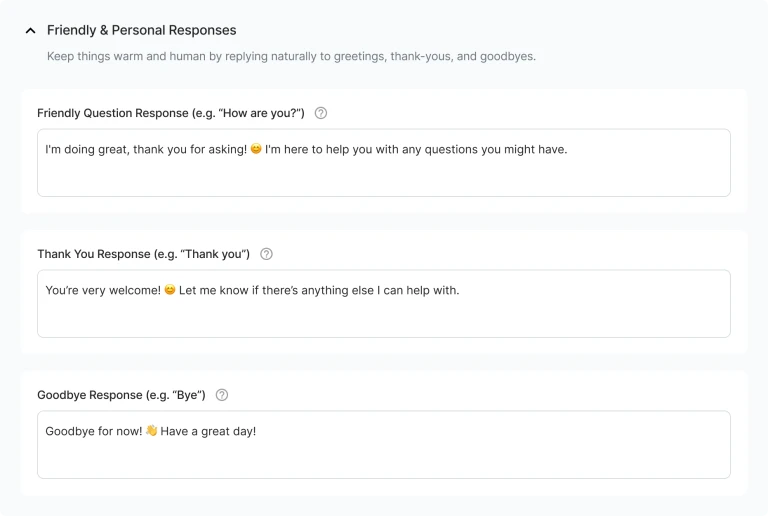
Friendly & Personal Responses
The Friendly & Personal Responses group handles warm, social moments in a conversation — when a visitor says thanks, wraps up, or chats casually. These messages may seem minor, but they significantly affect how human and trustworthy your AI feels. Use a tone that is consistent with your brand across all three templates.
- Friendly Questions Response (triggered by small talk like 'How are you?' or 'What's up?'): responds in a warm, human-like way that keeps the visitor engaged without breaking the support context. Keep it brief and upbeat.
- Thank You Response (triggered when a visitor says 'thanks', 'thank you', or similar): closes small positive interactions warmly. A message like 'You're welcome! Let me know if there's anything else I can help with.' is ideal.
- Goodbye Response (triggered when a visitor says 'goodbye', 'bye', 'see you', or similar): ends the session on a professional and friendly note. Consider including an invitation to return — for example, 'Take care! Feel free to come back anytime you need help.'
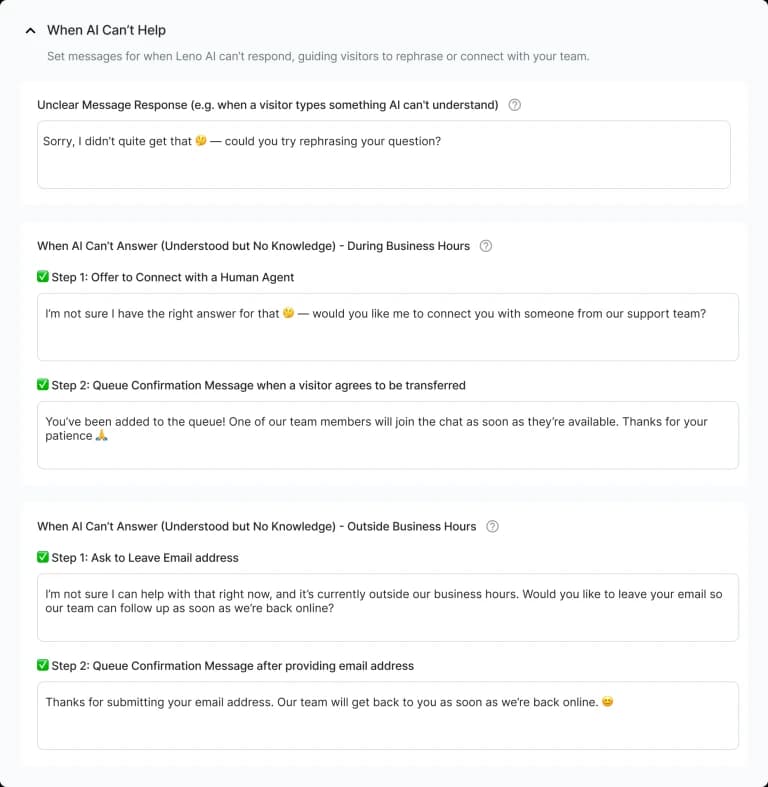
When AI Can't Help
Even great AI needs a backup plan. The 'When AI Can't Help' group gives you control over what happens when Leno AI hits the limits of its knowledge. You can configure separate responses for two distinct failure scenarios — when the AI cannot understand the input, and when it understands the question but does not have an answer in the knowledge base — and further split those by business hours context so visitors receive the most appropriate response at any time of day.
- Unclear Message Response: sent when Leno AI cannot understand or confidently interpret the visitor's input. Politely resets the conversation and invites clarification — for example, 'I didn't quite catch that. Could you rephrase your question?'
- AI Can't Answer – During Business Hours, Step 1 (Offer to Connect to Human): informs the visitor the AI cannot help and offers to transfer to a human agent. Make the offer clear and reassuring — for example, 'I don't have an answer for that one. Would you like me to connect you with a member of our team?'
- AI Can't Answer – During Business Hours, Step 2 (Queue Confirmation): sent after the visitor accepts the human handover offer. Confirms they've been added to the queue and sets expectations for response time — for example, 'Great! You're now in the queue. A team member will be with you shortly.'
- AI Can't Answer – Outside Business Hours, Step 1 (Ask to Leave Contact Info): when your team is offline, this message invites the visitor to leave their email and message so the team can follow up during business hours.
- AI Can't Answer – Outside Business Hours, Step 2 (Email Submission Confirmation): confirms receipt of the visitor's submission and reassures them a follow-up will occur — for example, 'Got it! We'll get back to you as soon as possible.'
Talking to a Human Agent
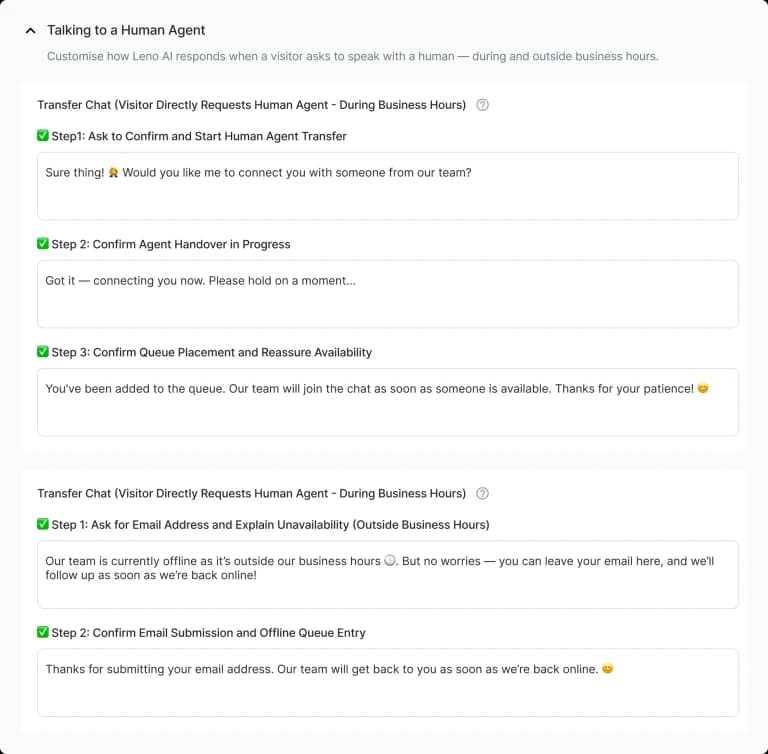
Some visitors will bypass the AI entirely and request to speak with a real person straight away. The 'Talking to a Human Agent' group handles this intent gracefully — guiding the visitor through the handover process whether your team is available online or offline. There are separate message flows depending on the combination of visitor request type and business hours status, giving you precise control over each scenario.
- Visitor Requests Human – Transfer (During Business Hours), Step 1: acknowledges the visitor's request and begins the transfer process. Keep it reassuring and action-oriented — for example, 'Of course! Let me connect you with one of our team members right away.'
- Visitor Requests Human – Transfer (During Business Hours), Step 2 (Queue Confirmation): confirms the visitor has been added to the agent queue and a human will respond shortly. Setting realistic wait-time expectations here reduces impatience and drop-offs.
- Visitor Requests Human – Display Contact Form (During Business Hours), Step 1: if your inbox is configured to show a contact form rather than a live agent transfer, this message introduces the form and explains how and when the team will follow up.
- Form Submit Confirmation (shared Step 2): confirms the contact form was submitted successfully. This message is shared across both the 'AI Can't Answer' and 'Visitor Requests Human' form flows — customise it to reassure the visitor their message was received.
- Visitor Requests Human – Outside Business Hours: when your team is offline and a visitor requests a human agent, this message informs them of unavailability and guides them to leave a message via email so your team can follow up when back online.
How to Edit a Template
Editing any message template takes less than a minute. Every field follows the same interaction model — click to focus, edit, then save. Changes take effect immediately for all new conversations; there is no need to restart or republish anything.
- Step 1: Navigate to Settings → Leno AI Settings → Chatbot Message Templates.
- Step 2: Expand the template group you want to edit (e.g., Conversation Starter, Friendly & Personal Responses, When AI Can't Help).
- Step 3: Click inside any text field to focus it. The Save and Use Default buttons appear at the bottom of the field when it is focused.
- Step 4: Type your custom message. The Save button becomes active once the field contains at least one character.
- Step 5: Click Save to apply the change. The new message takes effect immediately for all new conversations.
- Step 6: To revert to the system default at any time, click Use Default. This restores the original message provided by LenoChat for that specific field.
Complete Template Reference
The table below summarises every template group, the trigger scenario, and the business hours context where it applies.
| Template Group | Trigger | Business Hours Context |
|---|---|---|
| Auto-Greeting Message | Chat widget opens automatically | Always active |
| Greeting Response | Visitor says 'hi' or 'hello' | Always active |
| AI Identity Message | Visitor asks 'Are you a bot?' | Always active |
| Friendly Questions Response | Small talk (e.g. 'How are you?') | Always active |
| Thank You Response | Visitor thanks the AI | Always active |
| Goodbye Response | Visitor says goodbye or ends the chat | Always active |
| Unclear Message Response | AI cannot parse visitor's input | Always active |
| AI Can't Answer – Offer Human (Step 1) | AI has no answer; team online | During business hours |
| AI Can't Answer – Queue Confirmation (Step 2) | Visitor accepts transfer | During business hours |
| AI Can't Answer – Contact Info Request (Step 1) | AI has no answer; team offline | Outside business hours |
| AI Can't Answer – Submission Confirmation (Step 2) | Visitor submits email form | Outside business hours |
| Visitor Requests Human – Transfer (Step 1) | Visitor asks for human; team online | During business hours |
| Visitor Requests Human – Queue Confirmation (Step 2) | Visitor is in agent queue | During business hours |
| Visitor Requests Human – Contact Form (Step 1) | Visitor asks for human; team offline | Outside business hours |
| Form Submit Confirmation (Step 2) | Visitor submits the contact form | During or outside hours |
| Auto-Close Message | Chat closes automatically due to inactivity | Always active |