Training Leno AI with Your Knowledge Base
April 15, 2026
Add website URLs, PDFs, and Q&A entries to train Leno AI with your business knowledge — so it answers customers accurately.
What Is the Leno AI Knowledge Base
The Knowledge Base is a dedicated section inside your Leno AI dashboard where you store all the information that Leno AI draws from when answering customer questions. Every piece of content you add — whether a webpage, a PDF document, or a manually created Q&A pair — is processed, broken into smaller chunks, and stored as vector embeddings. When a customer sends a message, Leno AI performs a similarity search across all your knowledge to find the most relevant content and uses it to generate an accurate response. The Knowledge Base powers both the autonomous Leno AI Agent chatbot, which responds to visitors automatically, and the Leno AI Copilot, which suggests replies to your human agents during live conversations.
- Website URLs — import content from any publicly accessible webpage so Leno AI can reference your existing online content.
- PDF Documents — upload PDF files containing product manuals, policies, guides, or any internal documentation you want the AI to learn from.
- Q&A Entries — manually create question-and-answer pairs for topics where you want the AI to give a specific, controlled response.
- All three source types are processed into the same searchable knowledge store, meaning Leno AI can combine information from different sources when answering a single question.
Accessing the Knowledge Base
The Knowledge Base page is located inside the Leno AI section of your dashboard. To navigate there, log in to your LenoChat dashboard, click Leno AI in the left sidebar to expand the Leno AI navigation, and then click Knowledge Base. The Knowledge Base page displays a banner explaining its purpose, three clickable source cards for adding new content, and a searchable table listing all your existing knowledge sources. Each source card shows your current usage count against your plan limit — for example, '3 of 10 Added' — so you always know how much capacity you have remaining.
- Step 1: Log in to your LenoChat dashboard at app.lenochat.com.
- Step 2: Click Leno AI in the left sidebar to open the Leno AI section.
- Step 3: Click Knowledge Base in the Leno AI sidebar. This opens the Knowledge Base page showing your existing sources and options to add new content.
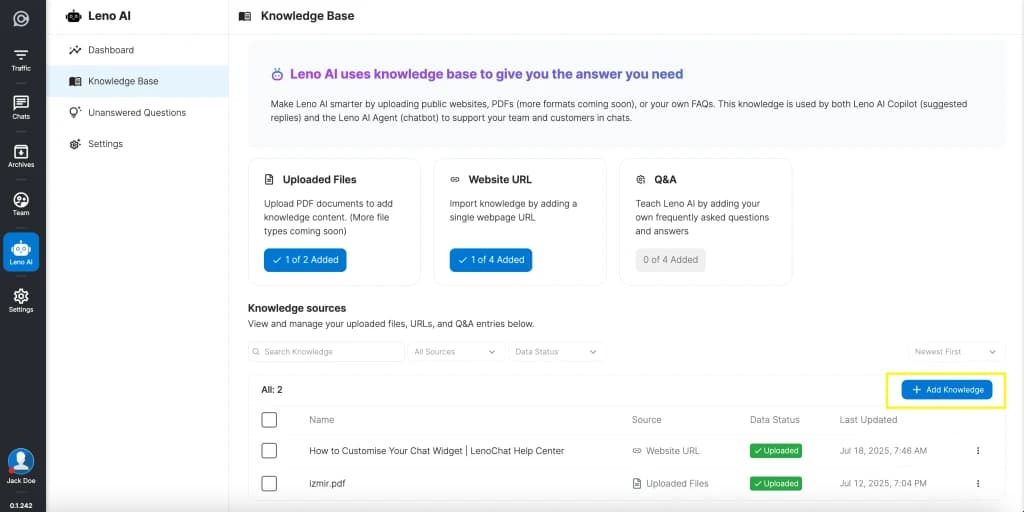
Understanding the Three Knowledge Source Types
Leno AI supports exactly three types of knowledge sources. Each type serves a different purpose and is suited to different kinds of content. You can use any combination of the three to build a comprehensive knowledge base that covers all the topics your customers might ask about.
- Uploaded Files (Documents) — PDF files containing product documentation, company policies, user guides, pricing sheets, or any text-heavy content. The AI extracts and processes the text from each page of the PDF. Only PDF format is currently supported, with additional file types planned for future updates.
- Website URL — a single publicly accessible webpage URL. Leno AI visits the URL, extracts the page content, and processes it for use in AI responses. This is ideal for importing content from your existing website, blog posts, help articles, or landing pages without manually copying text.
- Q&A (Question & Answer) — a manually entered question-and-answer pair. This gives you precise control over how the AI responds to specific recurring questions. The AI uses your exact answer text when it detects a customer question that closely matches your Q&A entry.
Adding a Website URL
To add a website URL to your knowledge base, you can either click the Website URL card on the Knowledge Base page or click the Add Knowledge button above the knowledge sources table and select Website URL from the dialog. The URL must point to a publicly accessible webpage — private pages behind login walls, localhost addresses, and IP addresses are not accepted.
- Step 1: Navigate to Leno AI → Knowledge Base in your dashboard.
- Step 2: Click the Website URL source card, or click Add Knowledge and select Website URL.
- Step 3: In the dialog that appears, paste the full URL of the webpage you want to import. If you omit the protocol, https:// is added automatically.
- Step 4: Optionally enter a display name for the source. If left blank, the URL is used as the name in your knowledge sources table.
- Step 5: Click Upload Page. A notification confirms the content is being processed in the background. You can continue working while processing completes — it typically takes around two minutes for a single webpage.
Uploading PDF Documents
PDF document upload lets you train Leno AI with content that may not be published on your website — internal knowledge base articles, product manuals, compliance documents, or training materials. The AI extracts all text from the PDF, processes it into searchable chunks, and stores it alongside your other knowledge sources. Only PDF format is currently supported, with more file types planned for future releases.
- Step 1: Navigate to Leno AI → Knowledge Base in your dashboard.
- Step 2: Click the Uploaded Files source card, or click Add Knowledge and select Import your file.
- Step 3: In the upload dialog, either drag and drop your PDF file into the drop zone or click Browse Files to select a file from your computer. Only one file can be uploaded at a time.
- Step 4: Once the file is selected, its name appears in the dialog with a Remove File option if you need to choose a different file. Verify the file is correct, then click Add File.
- Step 5: The file is uploaded to secure cloud storage and then processed in the background. Processing typically takes around four minutes depending on the document length. You receive a notification when the content is ready.

Creating Q&A Entries
Q&A entries are the most direct way to control how Leno AI responds to specific questions. Unlike website URLs and documents, where the AI interprets the content to formulate its own response, a Q&A entry provides an exact answer that the AI uses verbatim when it detects a matching question from a customer. This makes Q&A entries ideal for policy-sensitive responses, pricing inquiries, return policies, or any topic where consistency is critical.
- Step 1: Navigate to Leno AI → Knowledge Base in your dashboard.
- Step 2: Click the Q&A source card, or click Add Knowledge and select Add Manually.
- Step 3: A slide-in panel appears from the right side of the screen. Enter your question in the Question field — this is the question a customer might ask.
- Step 4: Enter the answer in the Answer text area below the question field. Write the answer exactly as you want the AI to deliver it to customers.
- Step 5: Click Save as a Q&A. The entry is processed in approximately 20 seconds and becomes available for the AI to reference immediately after processing completes.
Knowledge Source Comparison
The following table summarises the key differences between the three knowledge source types to help you choose the right one for your content.
| Feature | Website URL | PDF Document | Q&A Entry |
|---|---|---|---|
| Input method | Paste a public URL | Drag and drop or browse | Type question and answer manually |
| Content source | Extracted from the live webpage | Extracted from uploaded PDF text | Your exact written answer |
| Processing time | ~2 minutes | ~4 minutes | ~20 seconds |
| Editable after creation | No — delete and re-add | No — delete and re-upload | Yes — click to edit in Q&A panel |
| Best for | Help articles, blog posts, product pages | Internal docs, manuals, policies | Frequently asked questions, policy answers |
| Plan limit tracked | web_usage / web_limit | pdf_usage / pdf_limit | qa_usage / qa_limit |
Monitoring Processing Status
Every knowledge source goes through a processing pipeline after being added. The status is displayed in the Data Status column of the knowledge sources table, with colour-coded badges that update in real time via WebSocket notifications. You can filter the table by status using the Data Status dropdown above the table to quickly find items that need attention.
- In Progress (yellow badge) — the content is currently being extracted, chunked, and stored as vector embeddings. A clock icon next to the badge shows the estimated remaining processing time. You do not need to stay on the page — processing continues in the background and you receive a notification when it completes.
- Uploaded (green badge with checkmark) — the content has been processed successfully and is now available for the AI to reference when answering customer questions. No further action is needed.
- Failed (grey badge with alert icon) — processing encountered an error. For Website URL and PDF Document entries, hover over the info icon next to the badge to see the specific error message. Common causes include inaccessible URLs, corrupted PDFs, or timeout errors during content extraction. Delete the failed entry and try again after resolving the issue.
Managing Your Knowledge Sources
The knowledge sources table on the Knowledge Base page provides full management capabilities for all your added content. You can search, filter, sort, view, and delete entries individually or in bulk. Each row includes a three-dot action menu with options specific to the source type.
- Search — use the text search field above the table to filter sources by name. This is helpful when you have many entries and need to find a specific one quickly.
- Filter by source type — use the Source filter dropdown to show only Uploaded Files, Website URLs, or Q&A entries. Combine this with the Data Status filter to narrow results further, such as showing only failed website URLs.
- Sort — toggle between Newest First and Latest First to change the display order of your knowledge sources.
- View content — click any Website URL or PDF Document entry in the table to open the content detail view. This shows the full imported content, source metadata, creation date, and creator. Note that the detail view displays up to 400,000 characters — for very large documents, a banner explains that the full content is still used by the AI even though only the first 400,000 characters are shown on screen.
- Delete — click the three-dot menu on any row and select Delete, or select multiple items using the checkboxes and click the Delete button for bulk deletion. A confirmation dialog appears before any content is permanently removed.
- Open or download — for Website URL entries, the action menu includes Open in New Tab to visit the original URL. For PDF Document entries, it includes Download to save the original file to your computer.
Plan Limits and Knowledge Quotas
Your LenoChat plan determines how many knowledge sources you can add for each type, as well as the maximum file size for PDF uploads. These limits are enforced at the time of adding a new source. When you reach a limit, clicking the corresponding source card displays a plan upgrade popup instead of the add dialog. Add-on packages can increase your limits beyond what your base plan provides.
- Each knowledge source type has its own separate limit — pdf_limit for documents, web_limit for URLs, and qa_limit for Q&A entries. Reaching the limit for one type does not affect your ability to add the other types.
- The file size limit for PDF uploads (ai_filesize_limit) is also determined by your plan. Larger plans allow larger individual file uploads.
- Add-ons are cumulative with your base plan limits. If your plan allows 10 website URLs and you purchase an add-on for 10 more, your total limit becomes 20.
- For Free and Plus plans, the upgrade popup shows the message 'Upgrade your plan to add more knowledge.' For Pro plans, the message reads 'Please contact the LenoChat team if you need to add more knowledge.'
- You can check your current usage at a glance from the Leno AI Dashboard, where each knowledge type shows a progress bar and usage count alongside a Manage button that links directly to the Knowledge Base page.
How Leno AI Uses Your Knowledge
When a customer sends a message through the chat widget, Leno AI searches your entire knowledge base using vector similarity search to find the content chunks most relevant to the customer's question. It then uses these chunks as context to generate a natural, conversational response that directly addresses what the customer asked. The AI does not simply copy-paste from your sources — it synthesises information from potentially multiple sources to create a coherent answer.
- Leno AI Agent (chatbot) — when the Agent is enabled, it automatically uses the knowledge base to respond to every incoming visitor conversation without human intervention. If it cannot find a confident answer, it triggers your configured Handoff behaviour to route the conversation to a human agent or display a contact form.
- Leno AI Copilot — when the Copilot is enabled, it uses the knowledge base to suggest replies to your human agents during live conversations. Agents see AI-generated suggestions in their sidebar panel and can choose to send them directly or modify them before sending.
- Both the Agent and Copilot draw from the same knowledge base. Any content you add is immediately available to both AI modes once processing completes.
Best Practices for Knowledge Base Training
The quality of your knowledge base directly determines the quality of Leno AI's responses. Follow these guidelines to get the most out of your AI training and ensure your customers receive accurate, helpful answers.
- Start with your most frequently asked topics — review your recent chat history and identify the questions your customers ask most often. Add knowledge sources that cover these topics first to get immediate value from the AI.
- Keep content up to date — if a product page or policy document changes, delete the old knowledge source and add the updated version. The AI cannot detect when source content has changed, so stale entries may lead to outdated answers.
- Use Q&A entries for high-stakes answers — for topics like refund policies, pricing, legal disclaimers, or anything where the exact wording matters, create dedicated Q&A entries rather than relying on the AI to interpret a webpage or document.
- Test regularly with Playground — after adding or updating knowledge sources, use the Playground to verify the AI's responses. Send the same questions your customers commonly ask and check that the answers are accurate, complete, and appropriately phrased.
- Add context, not just facts — when creating Q&A entries or choosing webpages to import, prefer content that explains the why and how, not just the what. The AI generates better responses when it has context about why a policy exists or how a feature works, rather than just a bare list of facts.