Enable Notifications
April 15, 2026
Enable sound, browser, and mobile notifications so you never miss a new message, chat request, or AI assignment.
Notification Channels and Events Overview
LenoChat provides a 3×3 notification matrix that lets you independently control three notification channels for three different event types. Each channel can be toggled on or off per event, giving you fine-grained control over exactly how and when you are alerted. Understanding the distinction between channels and events is the first step to configuring notifications that match your workflow without overwhelming you with unwanted alerts.
- Sound Notification — An audible alert played directly in your browser tab whenever the corresponding event occurs. LenoChat uses two distinct sound files: one for new messages and another for new chat requests and Leno AI assignments. Sound notifications work immediately with no additional browser permission, as long as your browser tab has been interacted with at least once (browsers block auto-playing audio on tabs the user has not clicked into).
- Web Notification — A browser push notification that appears as a system-level alert outside the browser window. Web notifications are especially valuable when you are working in another application or another browser tab and would not see activity in the LenoChat dashboard. They require explicit browser permission, which LenoChat prompts you to grant on your first login.
- Mobile Notification — A push notification sent to the LenoChat mobile application on your device via Firebase Cloud Messaging (FCM). Mobile notifications ensure you are reachable even when you are away from your desk and not logged in to the web dashboard. They are configured from the same notification settings panel as sound and web notifications.
- New Message — Triggers when a visitor sends a message in a chat that is assigned to you. This is the most common event type and is the one most agents want active at all times.
- New Chat Request — Triggers when a visitor opens the chat widget and creates a new conversation that enters the unassigned queue. Enabling this alert helps agents pick up new conversations quickly, reducing wait times for visitors.
- Leno AI Assigned — Triggers when a conversation is handled by the Leno AI chatbot. This is useful for agents who monitor AI-handled conversations and want to jump in when the AI escalates or when a visitor requests a human agent.
Accessing Your Notification Settings
All notification preferences are managed from your Profile Settings panel inside the LenoChat dashboard. The settings panel is accessible from any page in the dashboard — you do not need to navigate to a specific section first. Every agent configures their own notification preferences independently; there is no workspace-wide override that forces notification settings on individual agents.
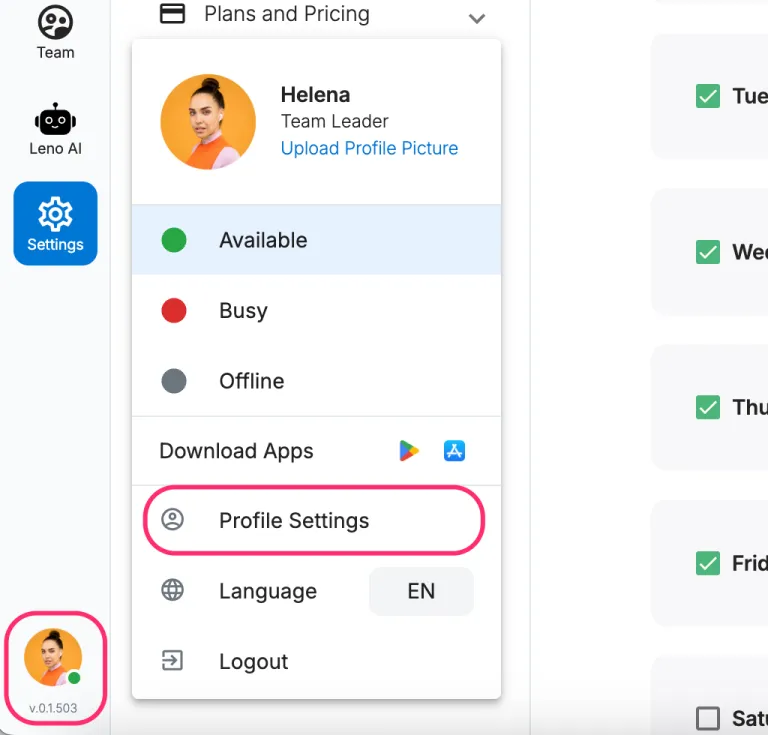
- Step 1: Locate the toolbar at the bottom-left corner of the LenoChat dashboard. Your profile picture and a coloured status dot are always visible here.
- Step 2: Click your profile picture to open the profile menu.
- Step 3: Select Profile Settings from the menu. A modal window opens showing your personal settings tabs.
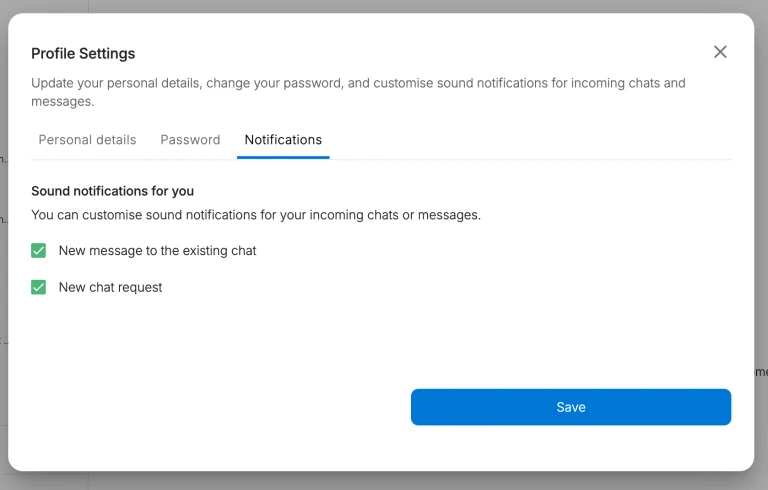
- Step 4: Click the Notifications tab within the Profile Settings modal. This tab displays the full 3×3 notification matrix where you can toggle each channel per event.
Configuring Your Notification Preferences
The Notifications tab presents a matrix-style layout with three rows (one per event type) and three columns (one per channel). Each cell contains a checkbox that you can toggle on or off. When a checkbox is enabled, you will receive that notification type for that event. When it is disabled, that specific combination is silenced. Changes are saved automatically — there is no separate Save button to press. By default, all nine notification preferences are enabled for every new account, so every agent starts fully notified from day one.
- Step 1: In the Notifications tab, locate the row for the event you want to configure — New Message, New Chat Request, or Leno AI Assigned.
- Step 2: Check or uncheck the checkbox under Sound Notification to control whether an audible alert plays for that event.
- Step 3: Check or uncheck the checkbox under Web Notification to control whether a browser push notification appears for that event.
- Step 4: Check or uncheck the checkbox under Mobile Notification to control whether a push notification is sent to your mobile device for that event.
- Step 5: Repeat for each event row until your matrix reflects your preferred notification behaviour. Your changes are saved in real time — close the modal when you are done.
Notification Settings Matrix
The table below shows all nine notification settings, their default state for new accounts, and what each combination controls. Use this as a reference when configuring your notification preferences.
| Event | Sound Notification | Web Notification | Mobile Notification |
|---|---|---|---|
| New Message | Enabled by default — plays a short alert tone when a visitor sends a message in a chat assigned to you | Enabled by default — displays a browser push notification with a preview of the message text | Enabled by default — sends a push notification to the LenoChat mobile app |
| New Chat Request | Enabled by default — plays a distinct tone when a visitor opens the chat widget and creates a new conversation | Enabled by default — shows a browser notification with the visitor name and optional first message | Enabled by default — sends a mobile push notification about the new request |
| Leno AI Assigned | Enabled by default — plays an alert when a conversation is assigned to or handled by Leno AI | Enabled by default — shows a browser notification indicating Leno AI is handling the chat | Enabled by default — sends a mobile push notification for AI-handled conversations |
Enabling Browser (Web) Notifications
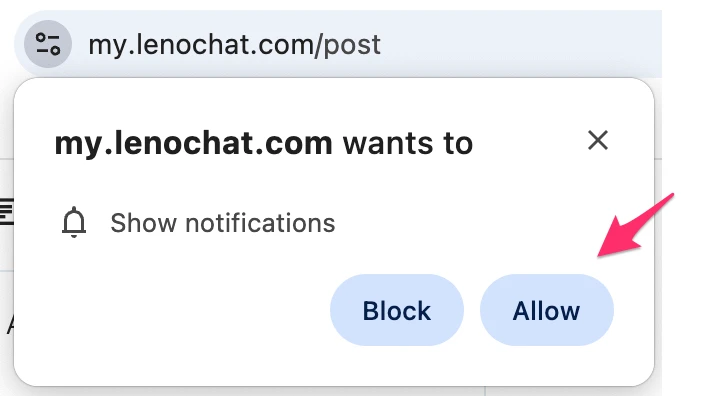
Web notifications use your browser's Notification API to display system-level alerts even when the LenoChat tab is not in focus. Before LenoChat can send web notifications, your browser must grant permission. LenoChat automatically prompts you to allow notifications on your first login. If you dismissed or denied this prompt, you will need to grant permission manually through your browser settings. Without browser permission, the web notification checkboxes in your notification preferences will have no effect — the underlying browser API will block all push notifications regardless of your LenoChat settings.
- Step 1: When you first log in to LenoChat, your browser displays a permission prompt near the address bar asking whether you want to allow notifications from the LenoChat domain. Click Allow to grant permission.
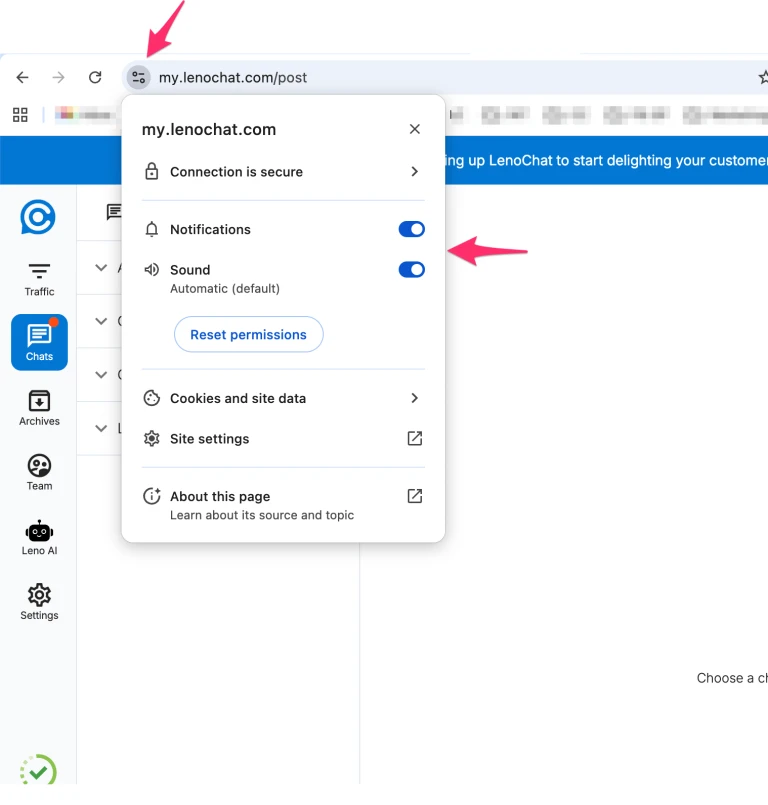
- Step 2: If you accidentally clicked Block or dismissed the prompt, you can re-enable notifications from your browser settings. In Google Chrome, click the lock icon (or tune icon) to the left of the URL in the address bar.
- Step 3: In the site settings dropdown, find the Notifications entry and change it from Block to Allow.
- Step 4: Reload the LenoChat page after changing the permission. The browser needs a page reload to pick up the updated notification permission status.
- Step 5: Verify the change by checking the LenoChat Notifications tab in your profile settings. If web notifications are disabled at the browser level, LenoChat displays a warning banner stating that web notifications are disabled and you may miss incoming chats, along with a link to this help article.
Allowing Chrome Notifications on macOS
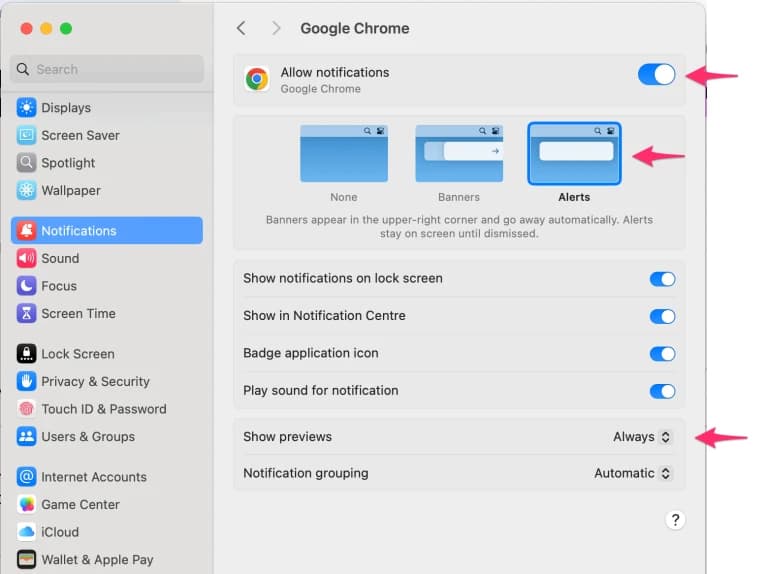
On macOS, browser notifications require an additional system-level permission beyond the in-browser Allow prompt. Even after granting notification permission in Chrome, macOS may block Chrome from displaying system notifications if Chrome does not have notification access in your macOS System Settings. This is a common issue for agents using macOS who have enabled web notifications in LenoChat but are not receiving any alerts.
- Step 1: Open System Settings on your Mac (Apple menu → System Settings).
- Step 2: Navigate to Notifications in the left sidebar.
- Step 3: Scroll down the application list and find Google Chrome (or your browser of choice).
- Step 4: Ensure Allow Notifications is toggled on. You can also configure the alert style — Banners dismiss automatically, while Alerts stay on screen until you interact with them.
- Step 5: Return to the LenoChat dashboard and test by having a colleague send you a test message. A macOS notification banner should appear in the top-right corner of your screen.
Checking macOS Focus and Do Not Disturb Settings
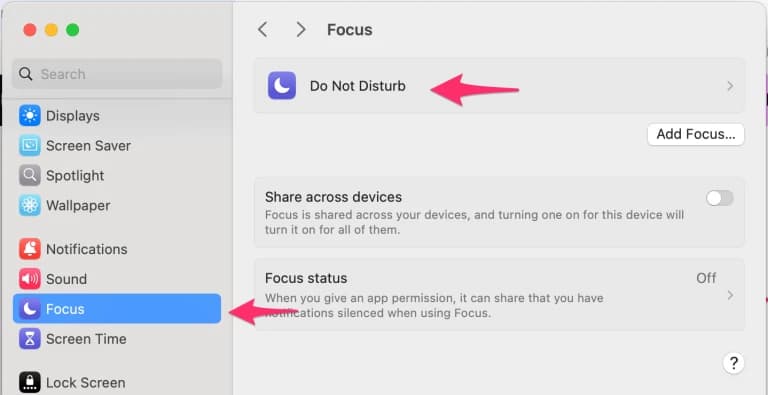
macOS Focus modes (including Do Not Disturb) can silently suppress all notifications from Chrome, even when both Chrome and LenoChat have notification permissions enabled. If you have a Focus mode active — identifiable by the crescent moon icon in your macOS menu bar — Chrome notifications will be blocked until the Focus session ends or you add Chrome as an allowed app in the Focus configuration. This is one of the most commonly overlooked reasons for missing web notifications on macOS.
- Step 1: Check the macOS menu bar for a Focus mode indicator. If you see a crescent moon icon or the name of an active Focus profile, a Focus mode is suppressing notifications.
- Step 2: Open System Settings → Focus and select the active Focus profile.
- Step 3: Under Allowed Notifications, click Apps and add Google Chrome to the allowed list. This ensures Chrome notifications pass through even when that Focus mode is active.
- Step 4: Alternatively, disable the Focus mode entirely while you are on shift handling live chats to ensure all notifications reach you without any filtering.
Understanding Sound Notifications
Sound notifications are audible alerts played directly within your browser when a notification event occurs. LenoChat uses two distinct audio files to help you differentiate between event types by ear alone. A shorter, lighter tone plays for new messages — the most frequent event — while a more prominent tone plays for new chat requests and Leno AI assignments, which typically require more immediate attention. Sound notifications do not require any special browser permission beyond the standard requirement that the user must have interacted with the page at least once (clicking anywhere on the LenoChat dashboard satisfies this browser requirement).
- New Message events play a brief notification sound that is designed to be noticeable without being disruptive during extended periods of active chatting.
- New Chat Request and Leno AI Assigned events play a distinct, slightly longer notification sound to draw your attention to events that may need immediate action.
- Sound volume is controlled by your system and browser volume settings — LenoChat does not have an independent volume slider. Adjust your system volume if notifications are too quiet or too loud.
- If you are in a shared office environment, consider using headphones to hear sound notifications without disturbing colleagues, or disable sound notifications and rely on web and mobile push notifications instead.
Mobile Notifications
Mobile notifications are push notifications delivered to the LenoChat mobile application on your smartphone or tablet. They are powered by Firebase Cloud Messaging (FCM) on the server side and work independently of whether you are logged in to the web dashboard. Mobile notifications are especially important for agents who need to respond to chats while away from their desk, commuting, or working remotely without constant access to a laptop.
- Mobile notification preferences are configured from the same Notifications tab in your Profile Settings — the Mobile Notification column in the 3×3 matrix controls which events send push notifications to your device.
- For mobile push notifications to work, you must have the LenoChat mobile app installed on your device and be signed in with the same account you use on the web dashboard.
- Ensure push notifications are allowed for the LenoChat app in your device's notification settings (iOS: Settings → Notifications → LenoChat; Android: Settings → Apps → LenoChat → Notifications).
- Mobile notifications are generated on the server when the triggering event occurs. Even if the LenoChat app is not running in the foreground, the push notification will appear in your device's notification centre as long as the app has background notification permissions.
How Notification Suppression Works
LenoChat includes smart suppression logic to prevent you from being notified about activity you are already watching. If you are currently viewing a specific chat conversation in the LenoChat dashboard, sound and web notifications for new messages in that conversation are automatically suppressed — there is no point alerting you to a message you are already reading in real time. This suppression checks both the URL query parameters and the application state to determine whether you are viewing the relevant conversation.
- If you have a chat open and a visitor sends a message in that chat, no sound will play and no browser notification will appear. You will see the message appear in the conversation view in real time.
- If the same visitor sends a message while you are viewing a different chat or a different section of the dashboard, sound and web notifications will fire normally.
- Web notifications that do appear are automatically dismissed after 10 seconds. Clicking a web notification navigates you directly to the relevant conversation in the LenoChat dashboard.
- Suppression is per-conversation — receiving a notification for one chat does not suppress notifications for other chats. Each conversation is evaluated independently.
Enabling Notifications in Other Browsers
While Chrome is the most commonly used browser for LenoChat, web notifications work in all modern browsers that support the Notification API, including Firefox, Microsoft Edge, and Safari. The permission flow differs slightly per browser, but the underlying concept is the same — grant notification permission for the LenoChat domain and ensure your operating system allows the browser to display system notifications.
- Firefox — When LenoChat requests notification permission, Firefox shows a popup in the address bar. Click Allow. If you missed it, click the shield or lock icon in the address bar, find Notifications under Permissions, and change it to Allow.
- Microsoft Edge — Edge uses the same Chromium notification system as Chrome. The permission prompt and site settings interface are nearly identical to Chrome. Click the lock icon in the address bar and set Notifications to Allow.
- Safari — On macOS Ventura and later, Safari supports web push notifications. When LenoChat requests permission, click Allow in the Safari prompt. You may also need to enable notifications for Safari in macOS System Settings → Notifications → Safari.
- For all browsers, ensure your operating system is not blocking notifications globally. On Windows, check Settings → System → Notifications and ensure your browser is listed under apps that can send notifications. On macOS, follow the steps described earlier in this article.
Default Notification Settings for New Accounts
Every new LenoChat account is created with all nine notification preferences enabled by default. This means that from your very first login, you are fully configured to receive sound alerts, browser push notifications, and mobile push notifications for every event type — new messages, new chat requests, and Leno AI assignments. This default ensures that new agents do not accidentally miss conversations while they are still learning the platform. You can customise your preferences at any time from the Notifications tab in your Profile Settings without affecting other agents in your workspace.