How to Connect Instagram to LenoChat
April 15, 2026
Receive and reply to Instagram Direct Messages from your LenoChat inbox — connect once and every DM flows in automatically.
Requirements Before You Connect
Before connecting Instagram to LenoChat, your Instagram account must meet three requirements set by Meta. These conditions are enforced during the Facebook OAuth authorisation process and cannot be bypassed. Make sure all three are in place before you begin to avoid connection errors.
- Instagram Business Account — your Instagram account must be set to Business type. Personal and Creator accounts cannot be connected to LenoChat. If your account is currently Personal or Creator, you must convert it to Business in the Instagram app before proceeding. Visit Instagram's official guidance to learn how to switch account types.
- Facebook Page Linked to Instagram — your Instagram Business account must be linked to a Facebook Page that you administer. The link is configured in Instagram Settings → Account → Linked Accounts → Facebook. If no Facebook Page is linked, LenoChat cannot discover your Instagram account during the OAuth flow.
- Message Control Enabled — Instagram must have Message Control enabled so that third-party apps like LenoChat can access your Direct Messages. This is set in Instagram's Privacy → Messages settings. LenoChat requests the instagram_basic and instagram_manage_messages permission scopes when you authorise via Facebook.
Navigate to Instagram Integration Settings
The Instagram connection panel is located in your LenoChat dashboard under Settings. From there you can view your connection status, start the OAuth flow, and see all currently connected Instagram accounts. Here is how to reach it.
- Step 1: Log in to your LenoChat dashboard.
- Step 2: Click Settings in the left-hand navigation sidebar.
- Step 3: In the Settings menu, scroll to the Channels section.
- Step 4: Locate the Instagram panel and click it to expand it.
- Step 5: You will see the Connect with Facebook button if no Instagram account is connected, or a list of your connected accounts if the integration is already active.
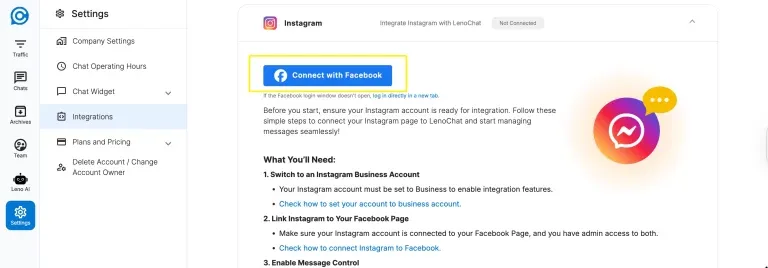
Step 1 — Click Connect with Facebook and Log In
Click the Connect with Facebook button in the Instagram panel. A Facebook Business Login popup opens. Log in using the Facebook account that administers the Page linked to your Instagram Business account. If you are already logged into Facebook in your browser, Facebook may skip the login screen and jump straight to the permissions request.
- The popup uses Facebook's official OAuth 2.0 dialogue — LenoChat never sees or stores your Facebook password.
- If the popup is blocked by your browser, click the 'Log in directly in a new tab' link shown below the Connect button. This opens the same OAuth flow in a new tab instead of a popup.
- During login, Facebook validates that the account you are logging into has admin access to at least one Facebook Page with a linked Instagram Business account. If no qualifying account is found, the process will end with no accounts connected.
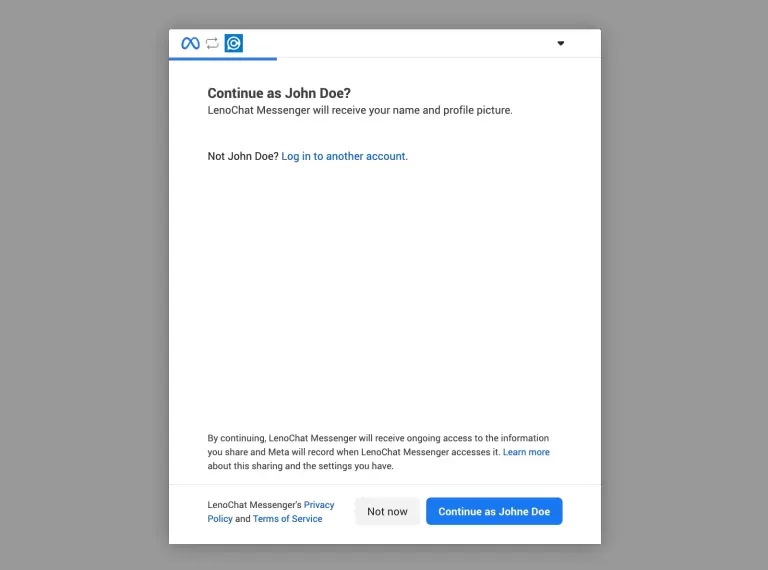
Step 2 — Review and Grant Permissions
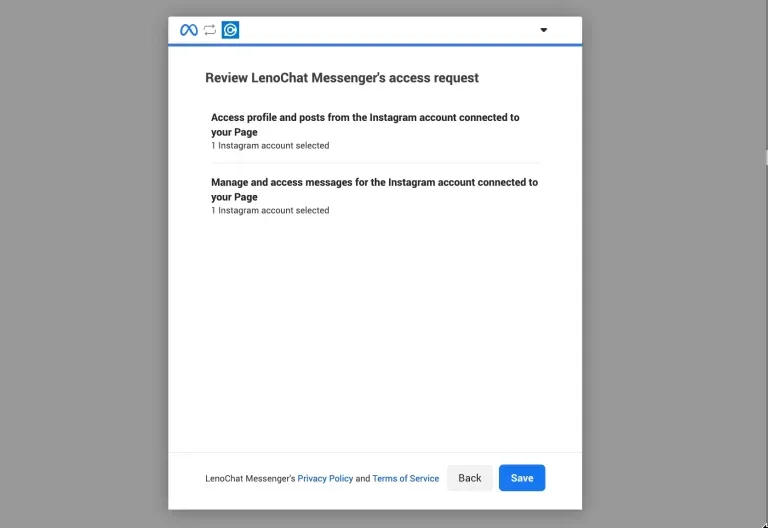
After logging into Facebook, you are presented with a permissions screen listing what LenoChat is requesting access to. LenoChat requests two scopes: instagram_basic for reading your Instagram profile and account information, and instagram_manage_messages for sending and receiving Direct Messages on your behalf. Review each permission and click Allow to proceed. Both permissions are required — declining either one prevents the integration from functioning.
- instagram_basic — allows LenoChat to read your Instagram Business account's ID, name, username, and profile picture. This information is used to display your account identity in the LenoChat dashboard and to associate incoming messages with the correct workspace.
- instagram_manage_messages — allows LenoChat to receive incoming Direct Messages via Facebook's webhook system and to send replies back to visitors on your behalf. This is the core permission that makes the inbox integration work.
- If you need to review or revoke these permissions later, you can do so in Facebook's Business Settings under Business Integrations → LenoChat.
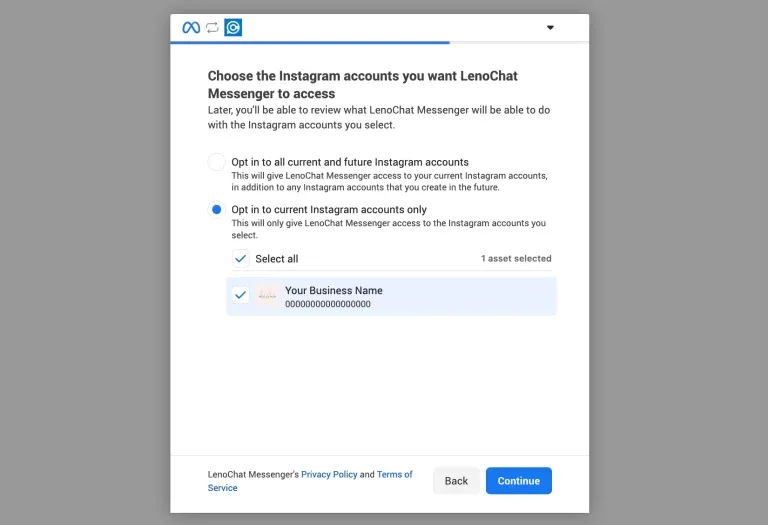
Step 3 — Select Your Instagram Account
After granting permissions, Facebook shows a list of all Instagram Business accounts linked to your Facebook Pages. Each account is identified by its Instagram name and username. Select the Instagram account or accounts you want to connect to LenoChat. If you have multiple Instagram Business accounts linked to different Pages, you can select all of them — LenoChat will create a separate inbox channel for each account.
- Step 1: Review the list of eligible Instagram accounts shown in the selection screen.
- Step 2: Check the box next to each account you want to connect.
- Step 3: Click Next to confirm your selection and complete the OAuth flow.
- Only Instagram Business accounts linked to Pages you administer as an Admin (not Editor or Analyst) will appear in this list. If an expected account is missing, verify your role on the linked Facebook Page.
Connection Confirmed — What Happens Next
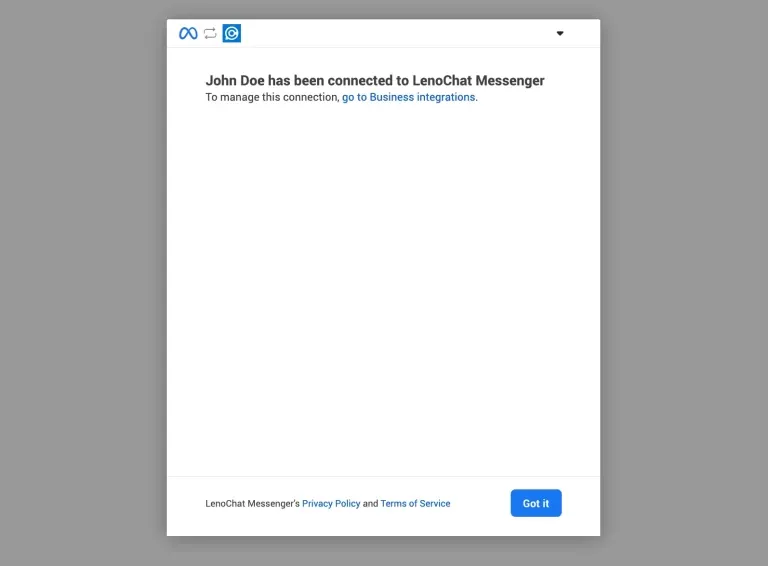
After selecting your Instagram account and completing the OAuth flow, LenoChat processes the connection and stores your account credentials securely. The Instagram panel in Settings updates to show your connected account's name. A success notification confirms: 'The pages have been successfully connected.' Your Instagram integration is now live.
- Instagram Direct Messages sent to your connected account from this point forward will appear in your LenoChat inbox in real time via Facebook's webhook system.
- LenoChat subscribes your Facebook Page to a webhook that notifies your workspace every time a new DM arrives — messages are delivered without any manual refresh.
- If Leno AI is configured and active on your workspace, it will automatically begin handling incoming Instagram DMs — analysing each message and sending intelligent replies without any agent intervention needed.
- You can connect additional Instagram accounts at any time by returning to Settings → Channels → Instagram and clicking Connect with Facebook again.
What You Can Do With the Instagram Integration
Once connected, LenoChat treats your Instagram Direct Message inbox the same way it treats conversations from your website widget, Facebook Messenger, or WhatsApp. The following features are available on all Instagram conversations.
- Receive and reply to Instagram Direct Messages — all DMs sent to your connected Instagram Business account appear in the LenoChat inbox. Agents can read messages, type replies, and send them back to the visitor's Instagram inbox directly from LenoChat without opening the Instagram app.
- Leno AI auto-responses — if Leno AI is configured, it reads every incoming Instagram DM and generates a contextually relevant reply based on your product knowledge base, FAQs, and training data. Responses are sent automatically, 24 hours a day, with no agent involvement required.
- Human agent handoff — when a visitor types 'talk to agent' or similar phrases, or taps the Talk to Agent quick-reply button, Leno AI stops responding and transfers the conversation to the agent queue. Agents receive a notification and can pick up the conversation immediately.
- Image attachments — visitors can send JPEG image attachments through Instagram DMs, and these are received and displayed in the LenoChat inbox so agents can view them and respond in context.
- Visitor profile information — LenoChat fetches the visitor's Instagram display name, username, and profile picture automatically when a new conversation begins. This information is shown in the conversation sidebar so agents always know who they are speaking with.
- Multiple accounts — you can connect more than one Instagram Business account to the same LenoChat workspace. Each account appears as a separate channel source in the inbox, making it easy to manage multiple brands or regional accounts from one place.
What the Instagram Integration Does Not Support
The Instagram integration in LenoChat focuses on Direct Messages only. Some Instagram features are outside the scope of what the Meta API makes available to third-party tools. Understanding these limitations helps you plan your customer communication workflow correctly.
- Comments — Instagram post comments and reel comments cannot be managed through LenoChat. The integration is limited to private Direct Messages only. Comment management must be done directly in the Instagram app or Meta Business Suite.
- Story replies — story replies are a form of Direct Message in Instagram's native app, but delivery to third-party tools depends on your Message Control and Primary Receiver settings. Configure LenoChat as the Primary Receiver to maximise delivery of story reply DMs.
- Unsupported message types — if a visitor sends a file type that Meta does not support for third-party delivery (such as a PDF, a reel, or a sticker), LenoChat will show an automated notice in the conversation. The conversation can continue normally with text messages.
- Outbound broadcasting — LenoChat does not support sending proactive broadcast messages to Instagram users. All conversations must be initiated by the visitor in accordance with Meta's messaging policies.
- Message editing and deletion — if a visitor edits or unsends a message in Instagram, that change is not reflected in the LenoChat inbox. The original message remains visible in the conversation history.
Disconnecting an Instagram Account
If you need to remove an Instagram account from your LenoChat workspace — for example, when switching brands or decommissioning a channel — you can disconnect it from the same Settings panel where you connected it. Disconnecting removes LenoChat's access to that account's DMs and automatically unsubscribes the Facebook Page webhook.
- Step 1: Navigate to Settings → Channels → Instagram in your LenoChat dashboard.
- Step 2: Locate the connected account you want to remove in the list of connected Instagram accounts.
- Step 3: Click the Disconnect button next to that account's name.
- Step 4: Confirm the disconnection in the dialogue that appears.
- After disconnecting, LenoChat calls Facebook's Graph API to unsubscribe from that Page's webhooks. New DMs sent to the disconnected account will no longer appear in LenoChat, but existing conversation history in your inbox is preserved and remains accessible.