What Happens When a Visitor Asks for a Human Agent?
Last updated: April 15, 2026
Learn how Leno AI detects when a visitor wants a human and automatically hands the conversation off to your team.
How the Leno AI Human Agent Handoff Works
The human agent handoff is one of the most important transitions in a live chat experience. When a visitor signals they want to speak with a real person, Leno AI needs to respond quickly and reliably — without the visitor having to repeat themselves to a human agent. Leno AI uses large language model (LLM) classification to understand the intent behind a visitor's message. It does not rely on exact keyword matching, so natural or informal phrasing is handled correctly. Once the intent is detected, the system evaluates three factors: your configured handoff mode, the channel the visitor is using (web widget, Facebook Messenger, WhatsApp, or Instagram), and whether your business is currently within operating hours. Based on these factors, Leno AI takes one of two actions — it either transfers the chat to the unassigned human agent queue, or it presents a contact form for the visitor to leave their details. The full conversation history from the AI session is always preserved and handed off to the human agent.
Phrases and Intents That Trigger a Handoff
Leno AI classifies incoming visitor messages using an AI model trained to understand natural language intent. The 'talk to agent' intent is triggered whenever a visitor expresses a desire to speak with a real person, regardless of how they phrase it. The following are examples of messages that trigger the handoff flow:
- "Connect me to an agent" or "I want to talk to a person"
- "I need help from a live agent" or "let me speak to someone"
- "Transfer me to a human" or "I don't want to talk to a bot"
- "Can I speak to someone real?" or "get me a human agent"
- "I need human help" or "I want to chat with a real person"
Two Handoff Outcomes: Transfer or Contact Form
Once a human agent request is detected, Leno AI evaluates your settings and the current context to determine which of two handoff actions to take. The outcome depends on your configured Handoff Mode, the visitor's channel, and whether you are currently within business hours:
- Transfer to Queue (Mode 0): The conversation is moved from AI-handled status to the unassigned agent queue. The visitor receives an acknowledgment message and a queue confirmation. An available human agent can then pick up the conversation directly from the Unassigned Chats list.
- Contact Form (Mode 1): A contact form appears inside the chat widget asking for the visitor's email address. After the visitor submits their details, the chat status is updated based on your configuration — either moved to the Unassigned queue for follow-up or marked as Resolved.
Option 1: Transfer to the Human Agent Queue (Mode 0)
When the handoff mode is set to Transfer (Mode 0), the conversation moves to the unassigned agent queue in real time. Here is the exact sequence of events that occurs from the moment the visitor's request is detected:
- Step 1: Leno AI detects the visitor's intent to speak with a human agent using LLM classification.
- Step 2: An immediate acknowledgment message is sent to the visitor — for example, "Absolutely! I will connect you with someone from our team."
- Step 3: The conversation status changes from AI-Assigned to Queued and the AI agent assignment is cleared.
- Step 4: A second message is sent confirming queue placement — for example, "You've been added to the queue. Our team will join the chat as soon as someone is available. Thanks for your patience!"
- Step 5: All connected agents are notified in real time via a socket event. The conversation appears in the Unassigned Chats list in the LenoChat agent dashboard.
- Step 6: An available agent clicks into the conversation. They can see the full AI conversation history — including the original message that triggered the handoff — before they begin responding.
Option 2: Contact Form Mode (Mode 1)
Contact Form mode is designed for situations where no live agent is immediately available — most commonly outside of business hours — and you want to capture the visitor's contact details for follow-up. When Mode 1 is active and a visitor requests a human agent, a contact form appears directly inside the chat widget. The form collects the visitor's email address. After submission, Leno AI sends a thank-you message and updates the chat status based on your configured post-submission setting. You can choose to move the chat to the Unassigned queue (so an agent reviews and follows up manually) or mark it as Resolved if no further action is needed from the team. You can also optionally enable an email notification so your team receives an alert whenever a visitor submits the contact form. Contact Form mode is only available on the web chat widget. On Facebook Messenger, WhatsApp, and Instagram, Leno AI always uses Transfer to Queue regardless of your Mode 1 configuration — this is because those platforms do not support the widget UI needed to render the contact form.

Configuring Handoff Settings in the Admin Panel
You can configure how Leno AI handles human agent requests from the Handoff section of your Leno AI settings. The settings are split into two independent sections — one for During Business Hours and one for Outside Business Hours — giving you full control over the handoff experience depending on when a visitor reaches out. Follow these steps to access and configure your handoff settings:
- Step 1: Log in to your LenoChat admin panel.
- Step 2: Navigate to Settings → Leno AI → Handoff.
- Step 3: Under the During Business Hours section, select your Handoff Mode: Mode 0 (Transfer to Queue) or Mode 1 (Contact Form).
- Step 4: If you selected Mode 1, set the Chat Status After Form Submission — choose Unassigned to add the chat to the agent queue for follow-up, or Resolved to close it automatically.
- Step 5: Optionally enable Send Email Notification to receive an alert when a visitor submits the contact form during business hours.
- Step 6: Repeat the configuration for the Outside Business Hours section. Many teams set Transfer during hours and Contact Form outside hours to maximize coverage.
- Step 7: Click Save to apply your changes. Updates take effect immediately for all new conversations.
Handoff Settings Reference
| Setting | Available Values | Default | Notes |
|---|---|---|---|
| Handoff Mode (During Hours) | Transfer (0) / Contact Form (1) | Transfer (0) | Social channels always use Transfer |
| Handoff Mode (Outside Hours) | Transfer (0) / Contact Form (1) | Transfer (0) | Social channels always use Transfer |
| Contact Form Status (During) | Unassigned (1) / Resolved (5) | Unassigned (1) | Chat status after form submission |
| Contact Form Status (Outside) | Unassigned (1) / Resolved (5) | Resolved (5) | Chat status after form submission |
| Send Email Notification (During) | Enabled / Disabled | Disabled | Notifies team when visitor submits form |
| Send Email Notification (Outside) | Enabled / Disabled | Disabled | Notifies team when visitor submits form |
Customizing the Handoff Messages
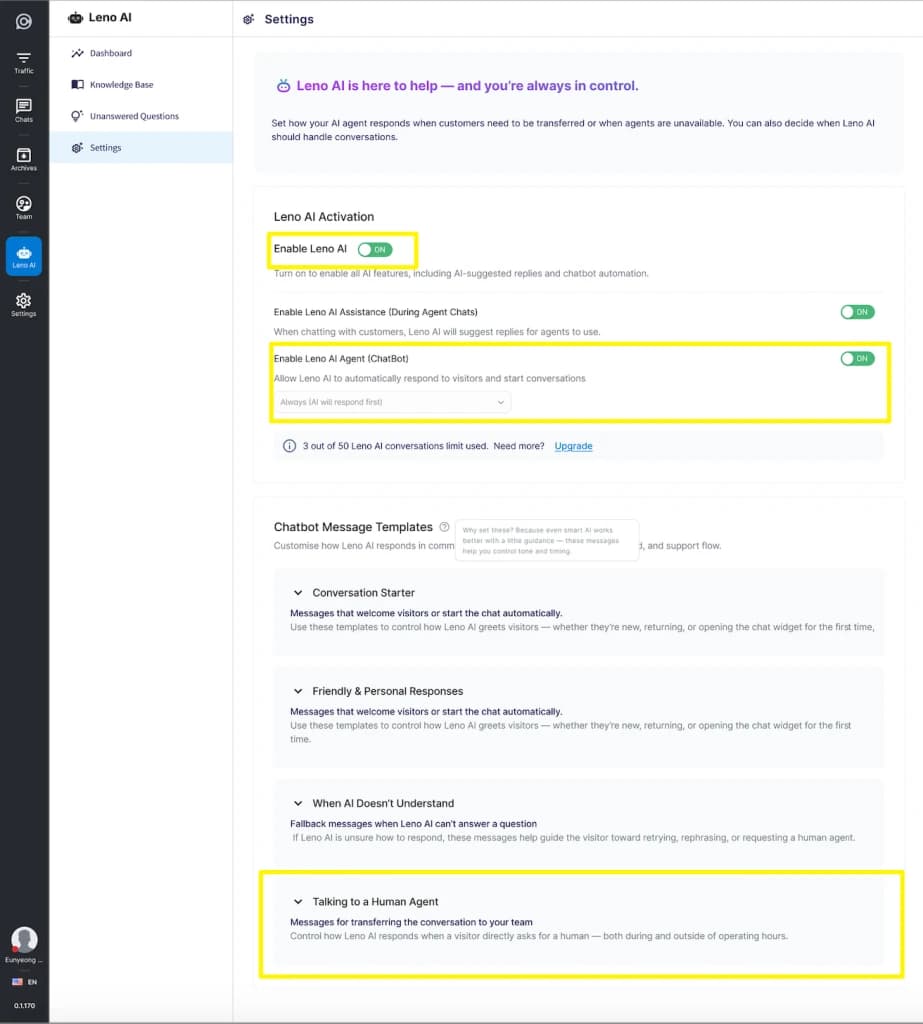
Leno AI sends one or two messages to the visitor during each handoff. You can fully customize all of these messages from the Leno AI Message Templates settings to match your brand voice and communication style. There are four message templates associated with the 'visitor requests human agent' scenario:
- Transfer Acknowledgment (S1 — Transfer): Sent immediately when a transfer is initiated. Default: "Absolutely! I will connect you with someone from our team."
- Transfer Queue Confirmation (S2 — Transfer): Sent after the chat enters the agent queue. Default: "You've been added to the queue. Our team will join the chat as soon as someone is available. Thanks for your patience!"
- Contact Form Prompt (S1 — Contact Form): Sent when the contact form is displayed. Default: "Please fill out the form below and we'll get back to you as soon as possible."
- Post-Submission Thank You (S2 — Contact Form): Sent after the visitor submits the form. Default: "Thank you! Our team has received your request and will contact you soon."
How Agents Are Notified of a Handoff
When a visitor's conversation is transferred to the human agent queue, every connected agent is notified in real time. The LenoChat notification center alerts agents of new unassigned conversations so no request is missed. The conversation appears in the Unassigned Chats list with the visitor's full AI conversation history intact, allowing the agent to review the context before they begin responding. Agents can see the customer's name, the channel the conversation came from (widget, Facebook Messenger, WhatsApp, or Instagram), and the original message that triggered the handoff. The chat status is displayed as Queued to clearly distinguish it from AI-handled conversations. When Contact Form mode is used and a visitor submits their details, agents who have email notifications enabled will also receive an email with the visitor's contact information and a direct link to the conversation in the dashboard.